Debug-Modus
Hoststar Designer has a debug mode. So if you ever find yourself in a situation where you have added code to a page (or under the Head & Body scripts) and now your editor cannot be loaded after saving or a page is suddenly no longer accessible, you can use debug mode. This will display all scripts on the Designer website for the duration of activation, allowing you to access the page to delete said code. Please deactivate the debug mode afterwards, so that your website can function properly again.
After «logging into Designer», follow these steps:
1. Navigate
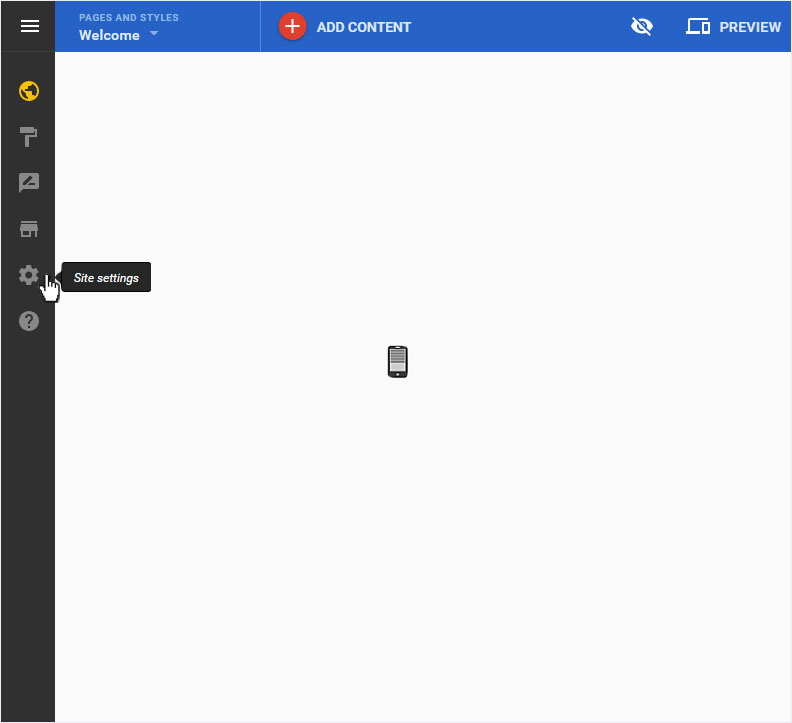
This example shows you now the start page in the Designer Editor, which is no longer displayed. An added code on the page now prevents the page from loading correctly. Click left on the menu item «Site settings».
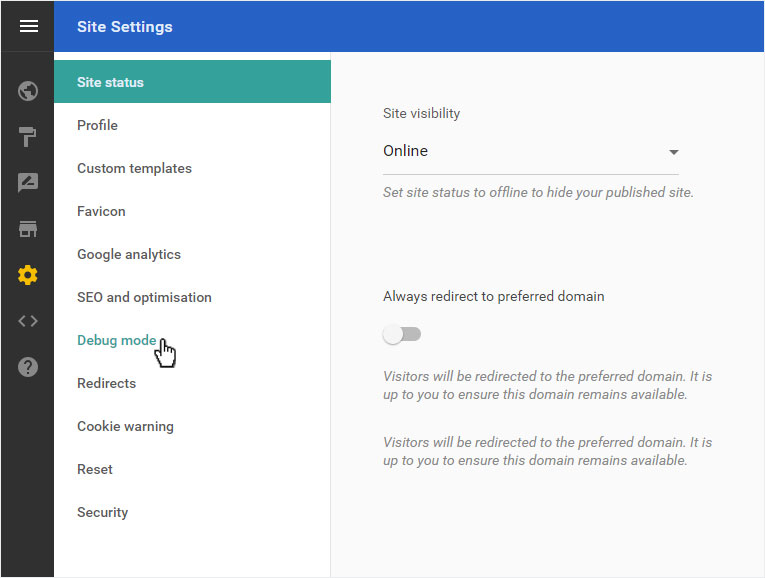
You can now see the «Site status» page of the «Site Settings» area. Click on «Google analytics» in the menu on the left.
2. Activate debug mode
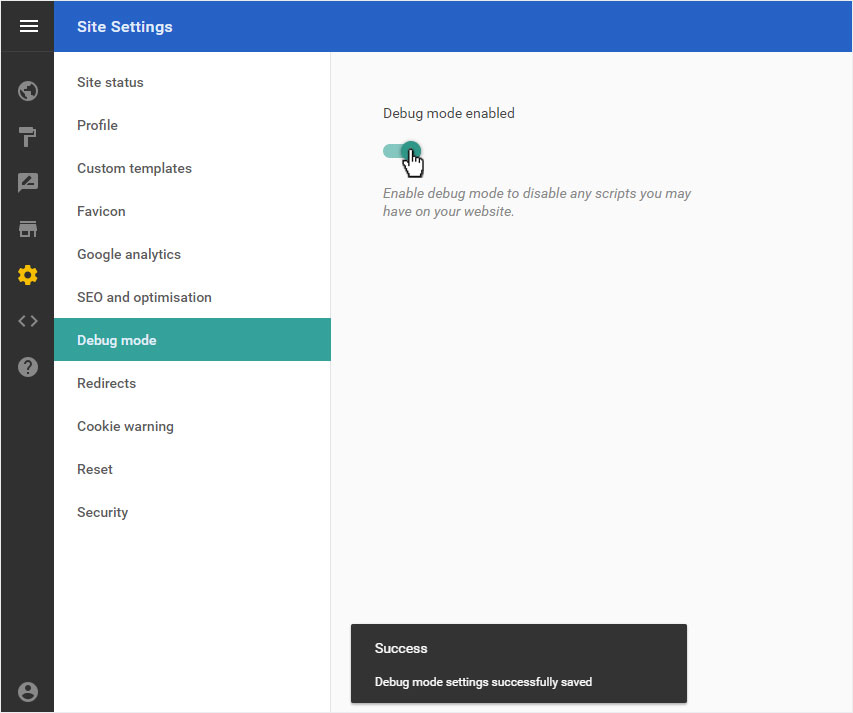
You are automatically directed to the «Debug mode» overview page. By clicking on the «On/Off switch», you can «activate or deactivate» the debug mode.
The moment you enable debug mode, you will momentarily disabling all scripts you have added to your site. This is shown below with a success message.
3. Return to the start page
Click on «Site editor» to return to the start page which was previously unavailable. Your site should be loading now without any problem.
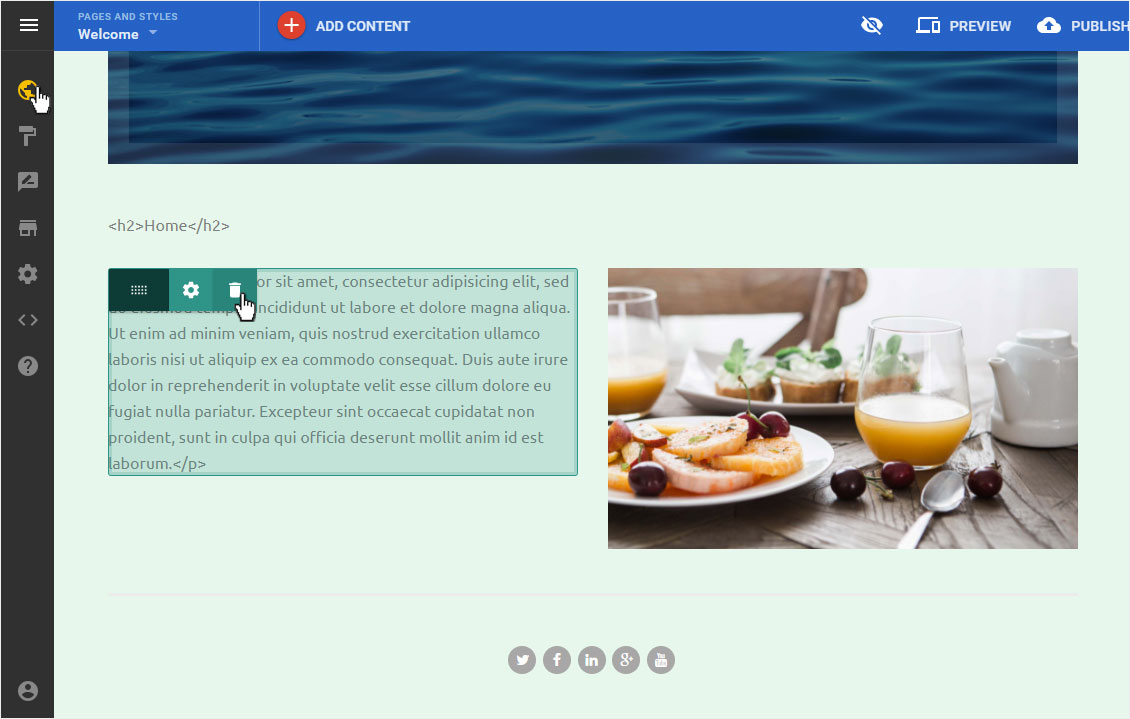
Go to the page where you have added the script and hover over the area where your code used to be. The «Content widget» will only be visible when your mouse is on top of it (as shown in the picture). Simply delete the widget by clicking on the recycle bin.
DO NOT FORGET to deactivate the debug mode again as described under «Point 2»!