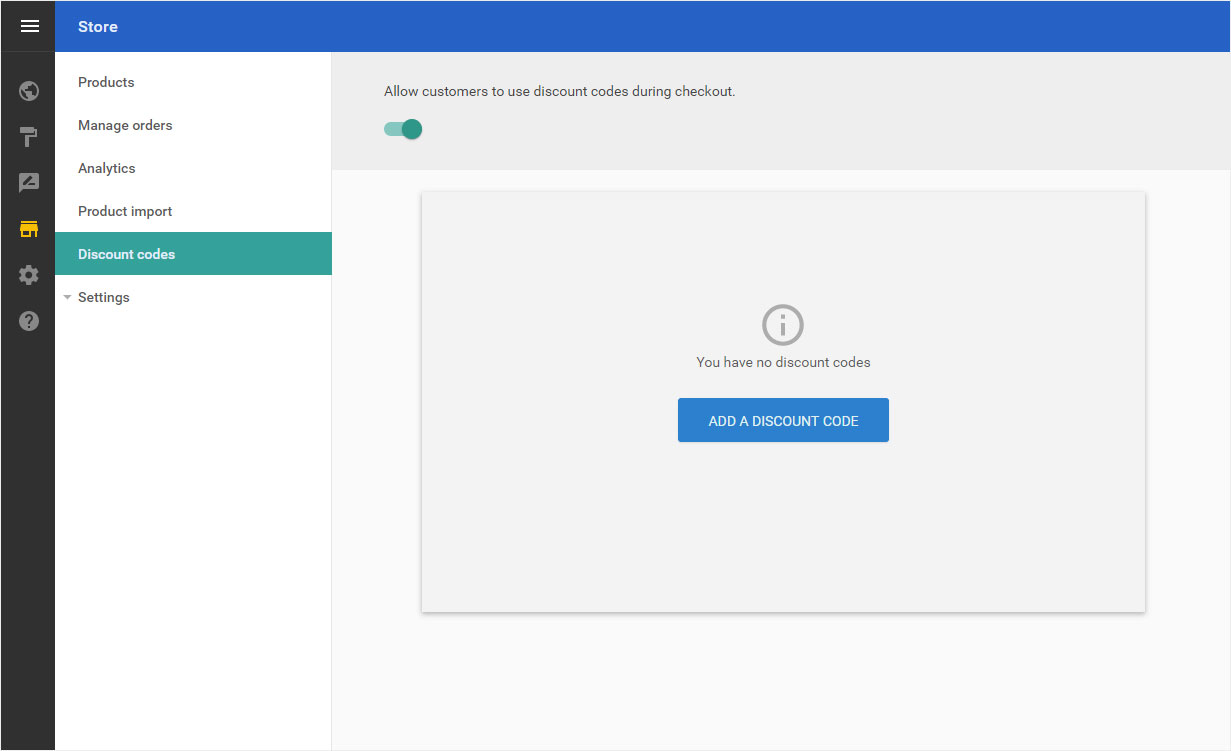
Discount codes
You can set up voucher codes in the shop, whether for new customers, Christmas promotions or for whatever you want to create vouchers for your customers. These can then be used by your customers in the order process.
After logging into Designer, follow these steps:
1. Navigation
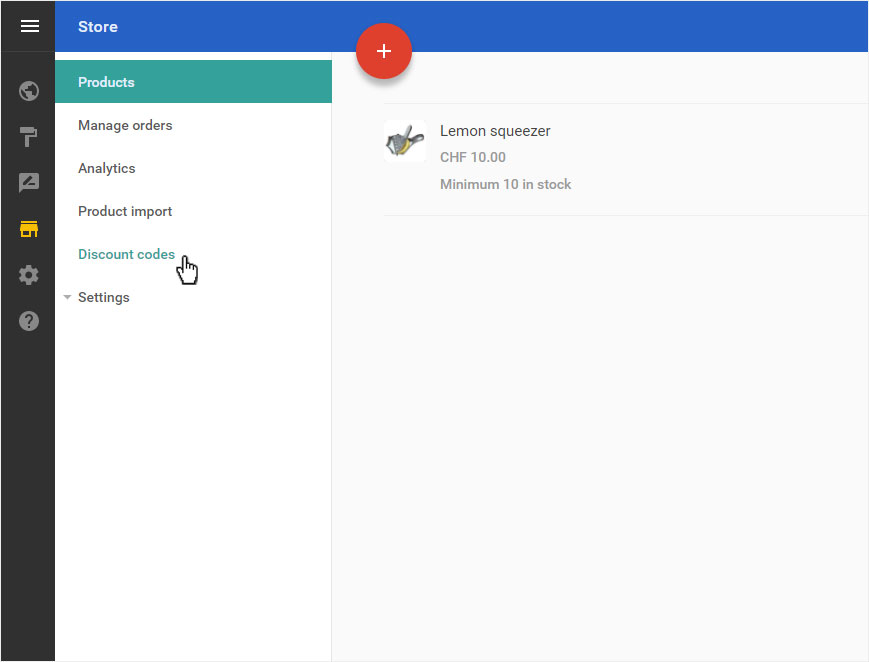
You begin on the home page of Designer's editor and are thus in the «Site editor» view. Click left on the menu item «Store».

You will be automatically redirected to the «Products overview» page. Click on «Discount codes» in the menu on the left.
2. add
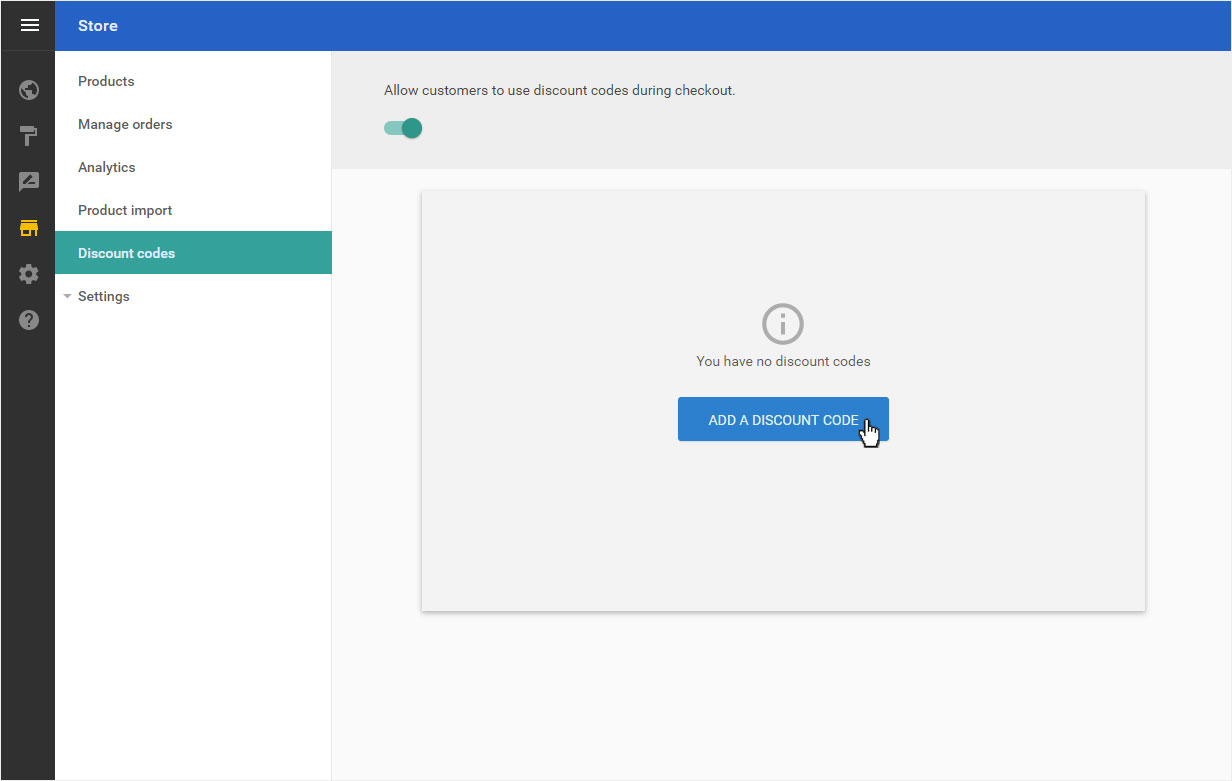
You will be automatically redirected to the coupon code overview page. If you have already entered voucher codes, they will be displayed here.
To create a new coupon code, click on «Add a discount code».
3. Coupon details
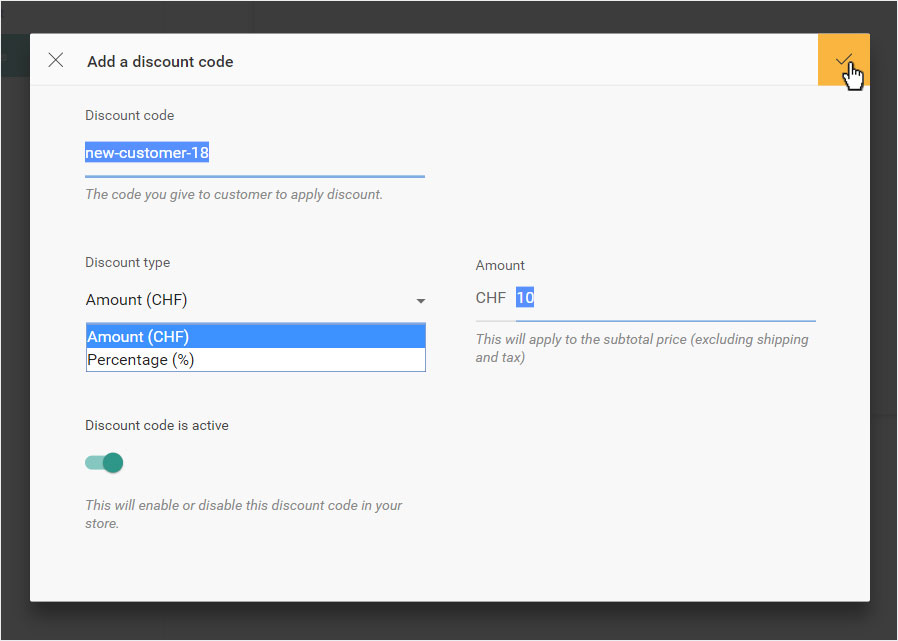
You can now define the details of your voucher code:
- Discount code - Enter a password that your customers can enter to receive the discount
- Discount type - Choose between a fixed «Amount» or whether «Percentage» a discount is deducted
- Amount / Percentage - Depending on the type of voucher, you can enter either the «Amount as value» or the «Percent» of your voucher here
- Discount code is active - Activate or deactivate your coupon code
To create the voucher code, click on the yellow «Tick» symbol.
4. Activate
In order to make the voucher codes available to your customers, you must activate «Allow customers to use discount codes during checkout.» in the upper area.

5. Editing
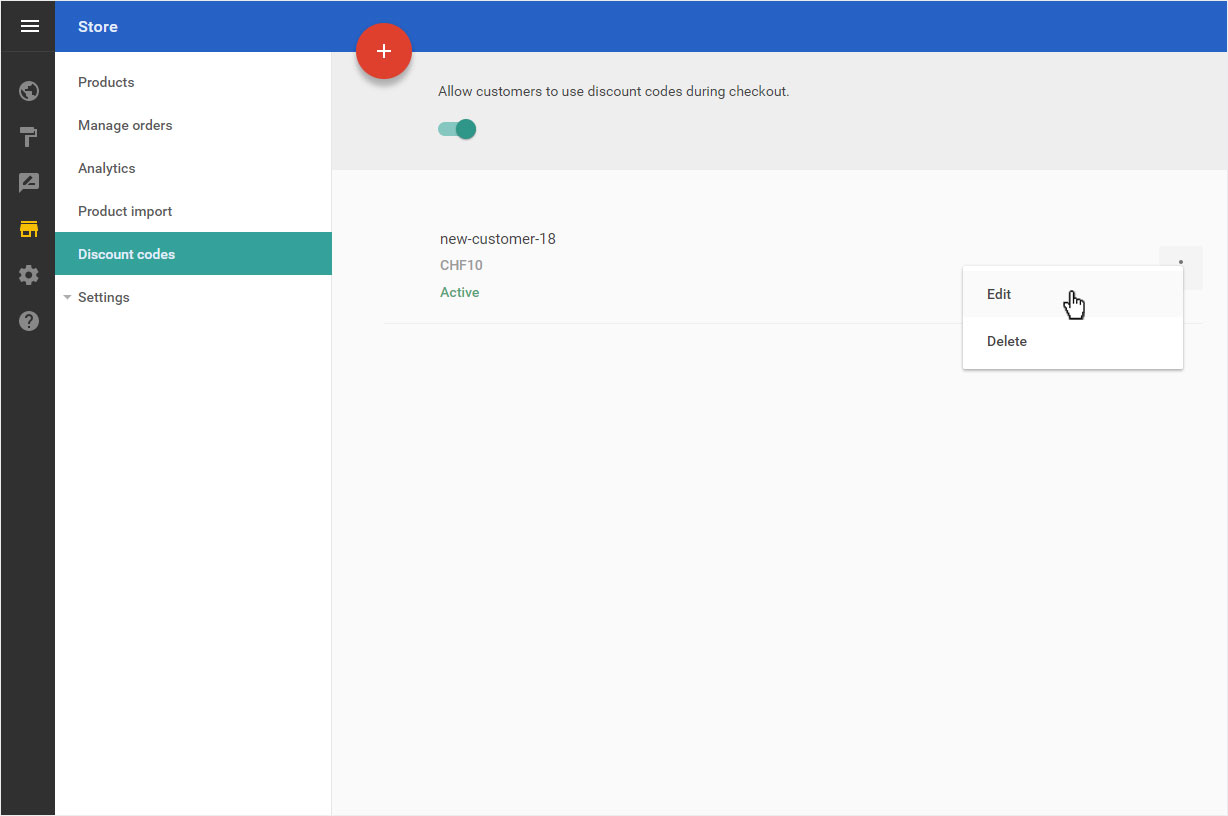
To «Edit» a coupon code that has already been deposited, first click on the «Options symbol» and then on «Edit».
To adjust the details, proceed according to the Coupon details and save your changes by clicking on the «checkmark» icon.
6. Delete
To «Delete» an already deposited voucher code, first click on the «Options symbol» and then on «Delete».
A warning message opens immediately. If you are sure that you want to delete this voucher code, click «OK».
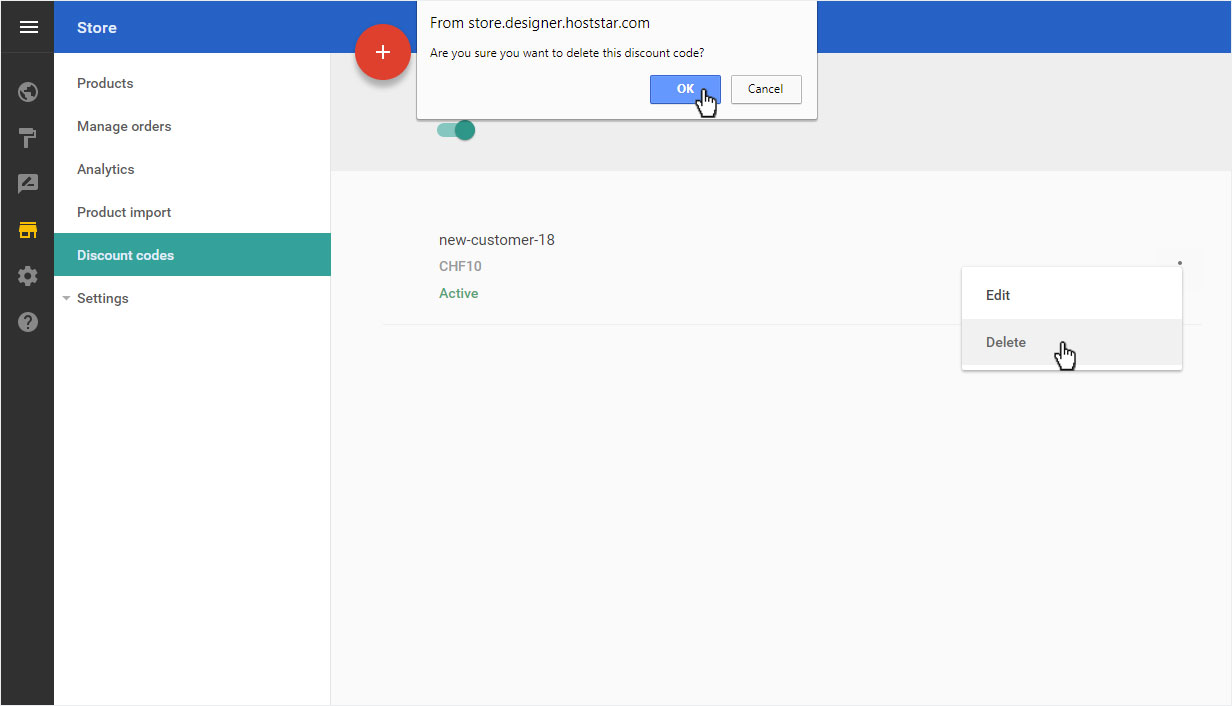
The voucher code will be deleted immediately and irrevocably.