Create/change/remove users
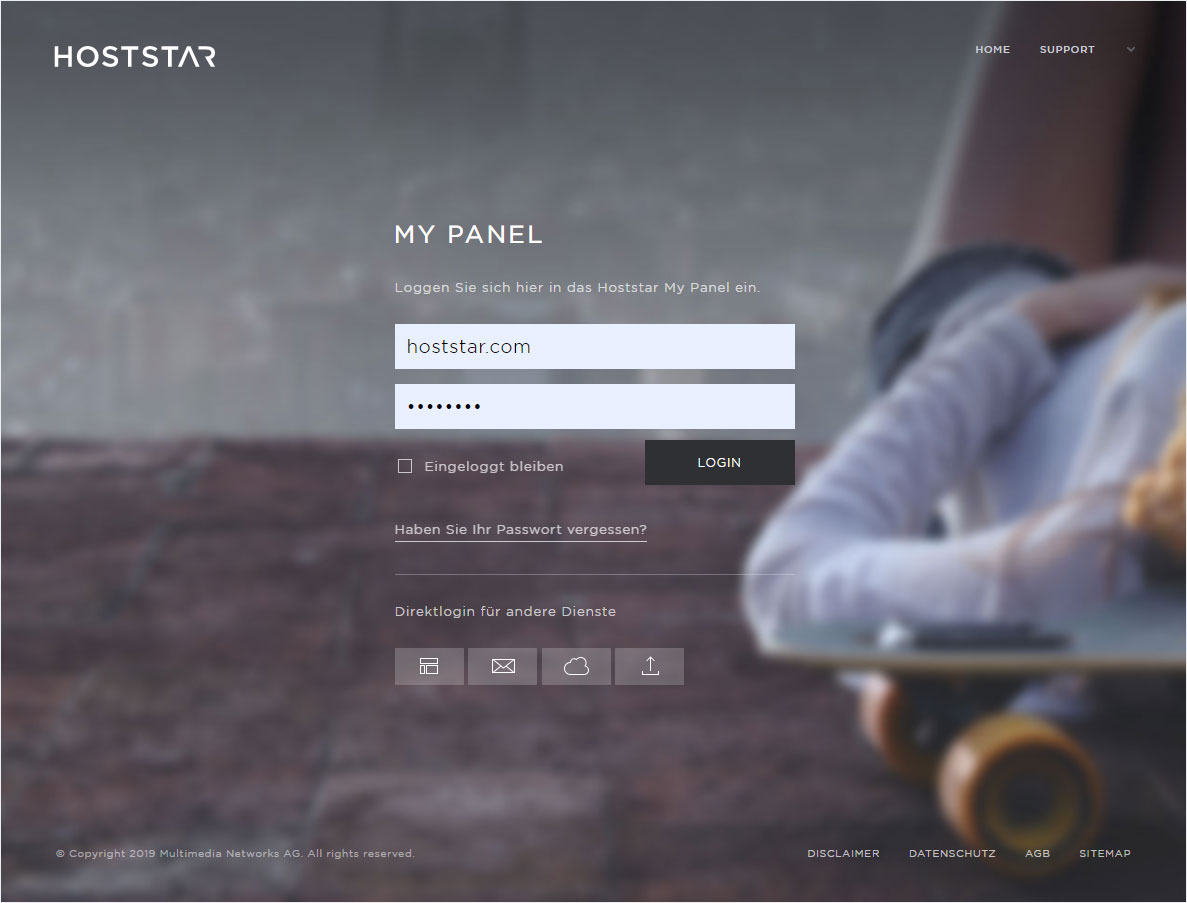
If you wish to manage the users of your Hoststar Cloud, you can carry out the following in My Panel:
2. Navigate
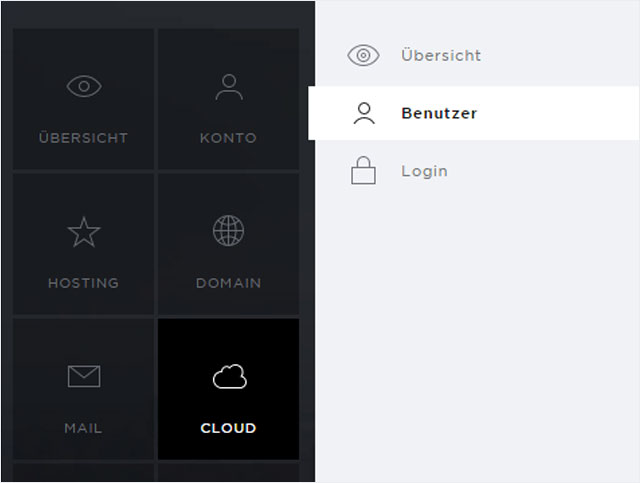
Click on the «Cloud» menu item and then «Users».
3. Manage users
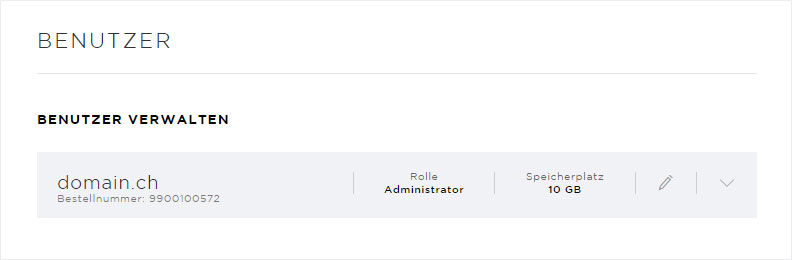
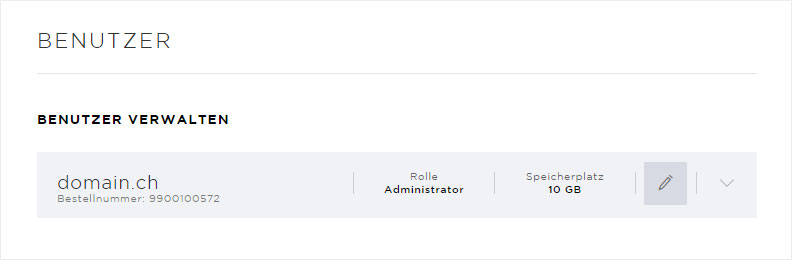
The activated Cloud will be displayed here. Here, you can see which hosting package or domain the Cloud was created on, the main user (role = administrator) and how much storage space you have.
Here you can also make the following changes:
- Change password for main user
- Delete main user
- Add users
- Show users
- Change password for users
- Delete users
Change password for main user
To change the password for the main user (administrator), click on the «pencil icon» in the Cloud view.
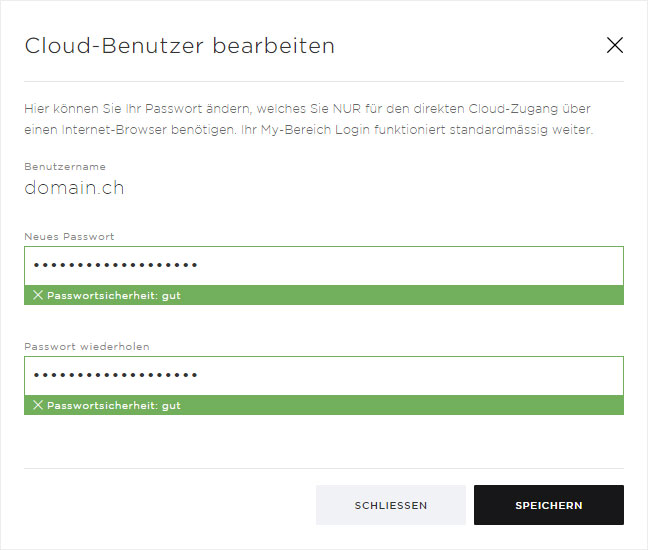
A pop-up window will appear. Enter the new password in both text fields, then click «Save». Your password is saved and is immediately valid.
Delete main user
The main user (administrator) cannot be deleted. To do this, you must «delete the Cloud» entirely.
Add user
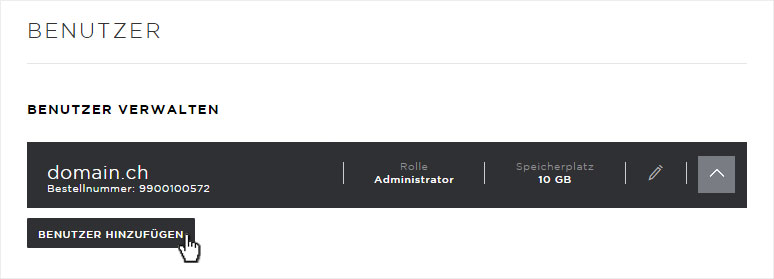
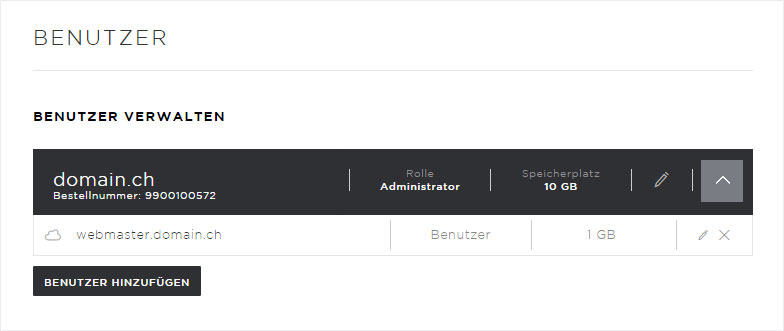
Under «Manage users», click on the «arrow icon» for the desired Cloud installation. Then click on the «Add user» button to add additional users for this Cloud.
Please note that you can create two additional users for each Hosting package or Cloud.
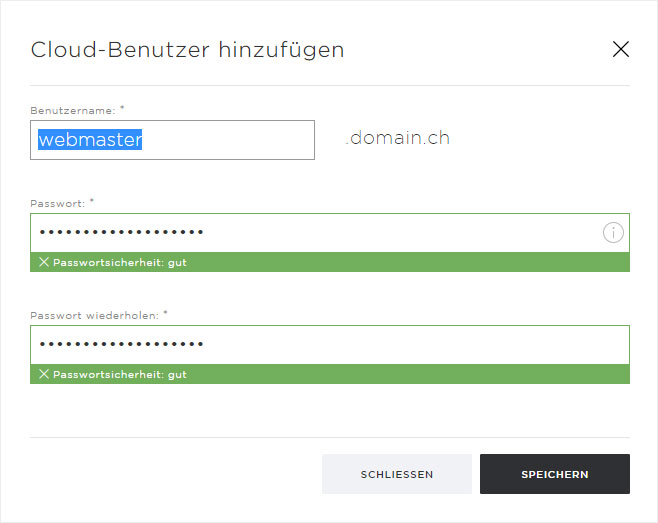
In the pop-up that now appears, enter the new user under User name (webmaster in this example). You can then define a password, repeating it in the second text field. Then click the «Save» button. The new user is saved and is active immediately.
Show users
To display additional users, click on the «arrow icon» under «Manage users» for the desired Cloud installation.
Change password for users
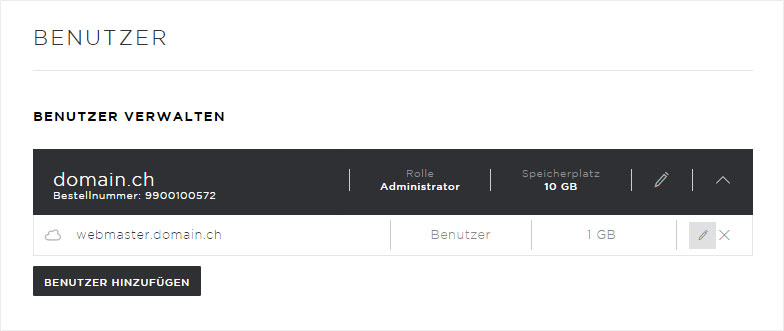
If you would like to change the password for an additional user, click on the «pencil icon» in the user view for that user.
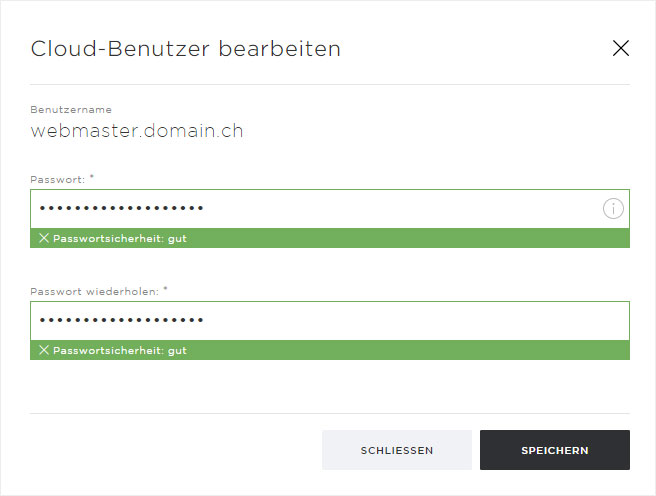
In the pop-up that now appears, define the new password and repeat it in the second text field. Then click the «Save» button. Your password is saved for this user and is immediately valid.
Delete user
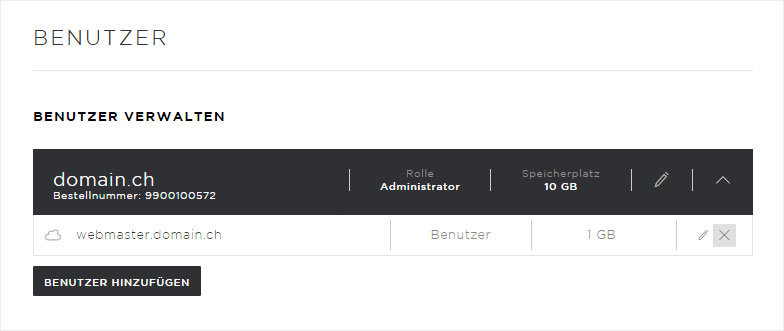
If you would like to remove an additional user, click on the «x icon» for the desired user in the user view.
In the pop-up that now appears, you will be notified that deleting this user will also permanently delete all of that user’s data.
If you wish to proceed, click on the «Remove» button.
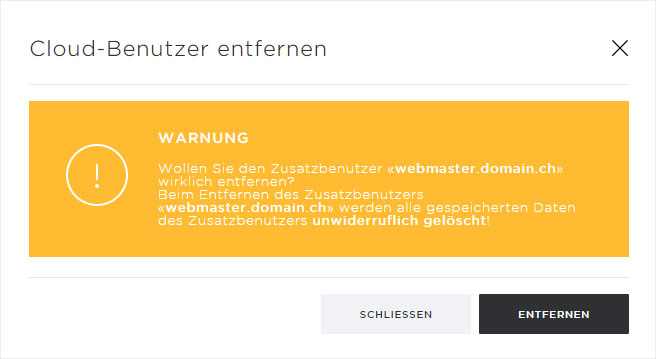
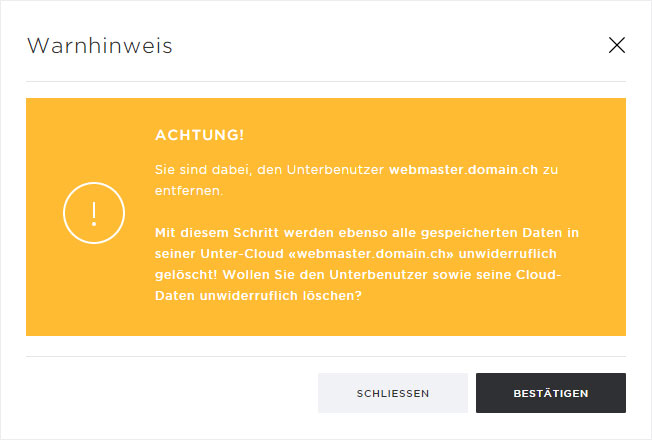
Another warning notice will appear, asking you whether you are sure that you wish to delete this sub-user along with all their data.
Once you click on the «Confirm» button, the data and the user will be immediately and permanently deleted.