Previews
With a simple click of your mouse, Hoststar Designer lets you see a live preview of pages you have edited. Each time you make a change, you can always use the previews for desktop, tablet and smartphone formats.
After logging into Designer, follow these steps:
Navigate
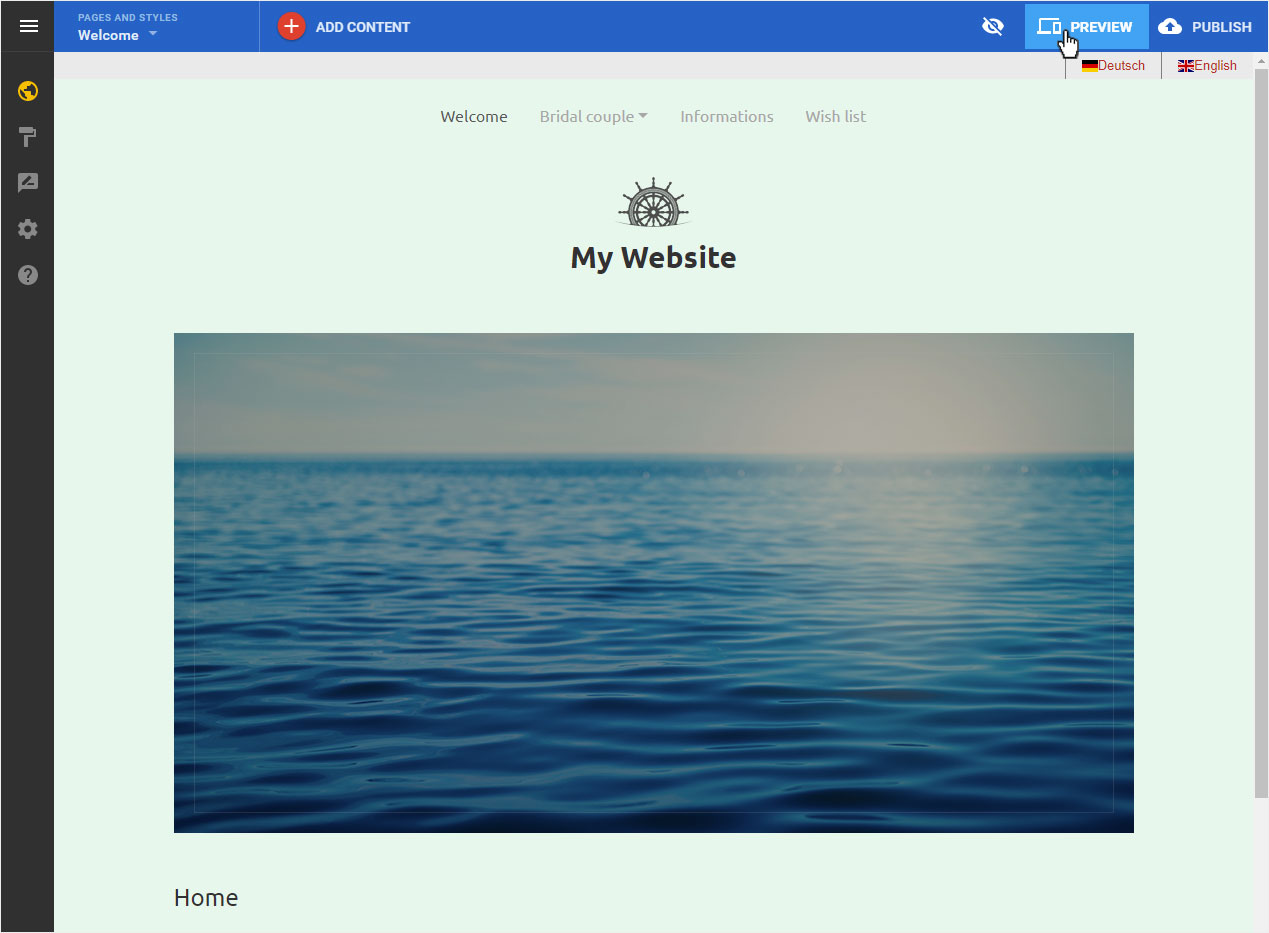
You are on the start page of the Designer Editor. Select the desired page and switch to Preview at the top by clicking on it.
Preview
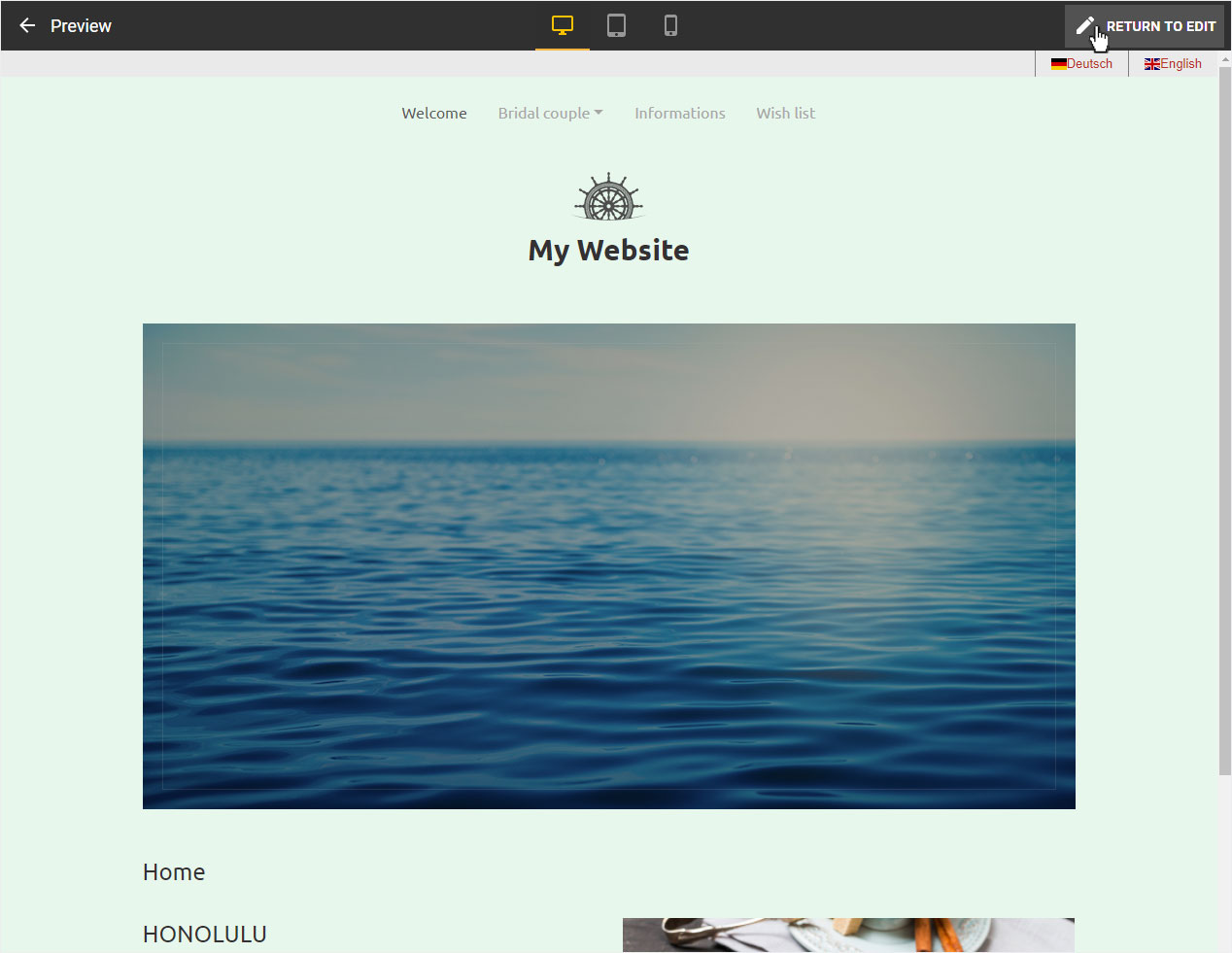
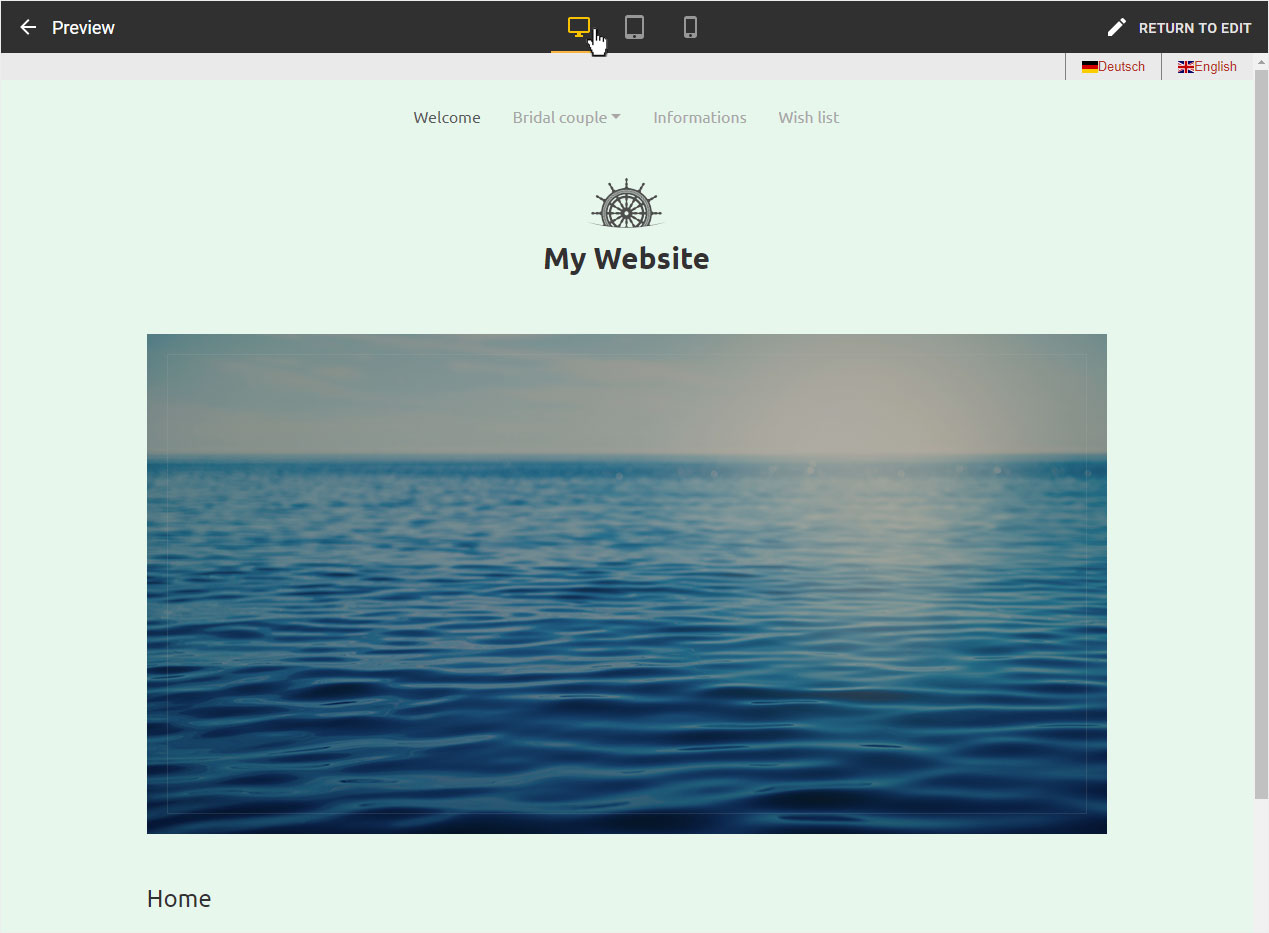
Depending on the view you have selected (in this case, desktop), you will see the corresponding preview. All editing elements within the page content are hidden.
You can view the live preview in three different resolutions:
- Desktop/notebook (no reduction of the window size to reflect a computer monitor)
- Tablet (simulates tablet display size)
- Smartphone (simulates smartphone display size)
Tablet-Preview
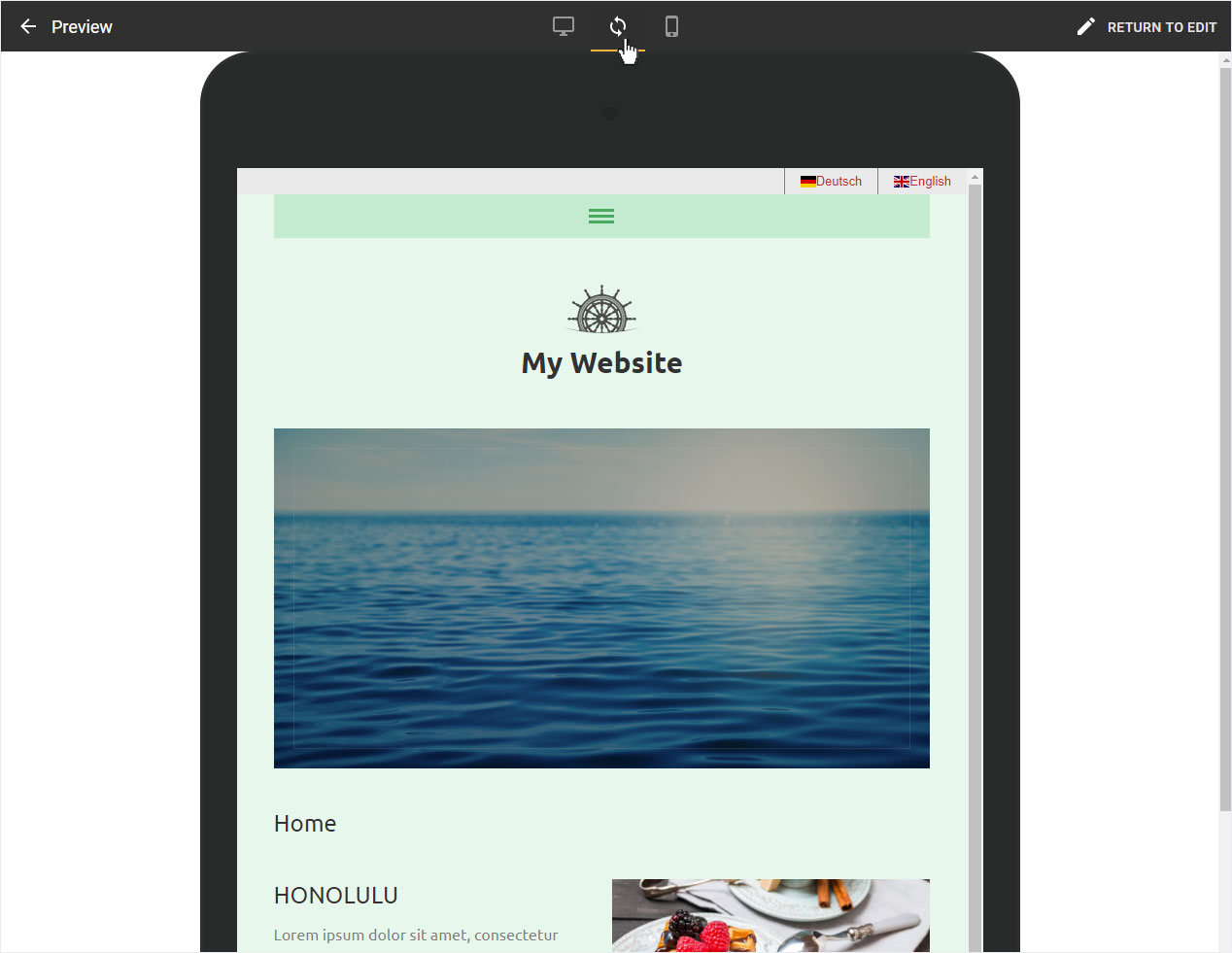
Clicking the Tablet icon switches the live preview to the tablet view. If you click the tablet icon a second time, the display switches from portrait to landscape, and vice versa.
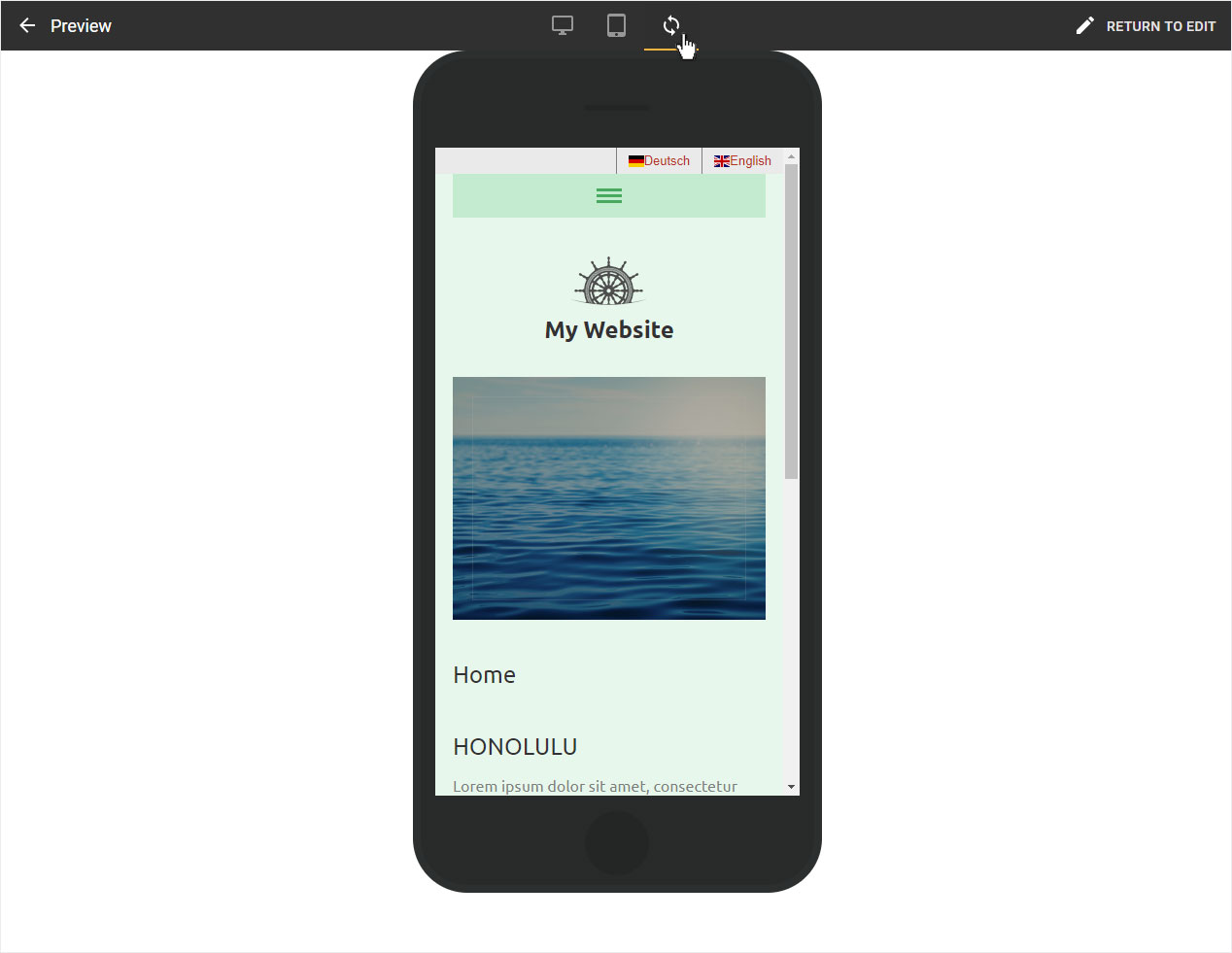
Phone-Preview
Clicking the Smartphone icon switches the live preview to the smartphone view. If you click the Smartphone icon a second time, the display switches from portrait to landscape, and vice versa.
Editing mode
To return to Designer’s editing mode, first click the Monitor (Desktop) icon and then change the switch from Preview to Return to Edit.