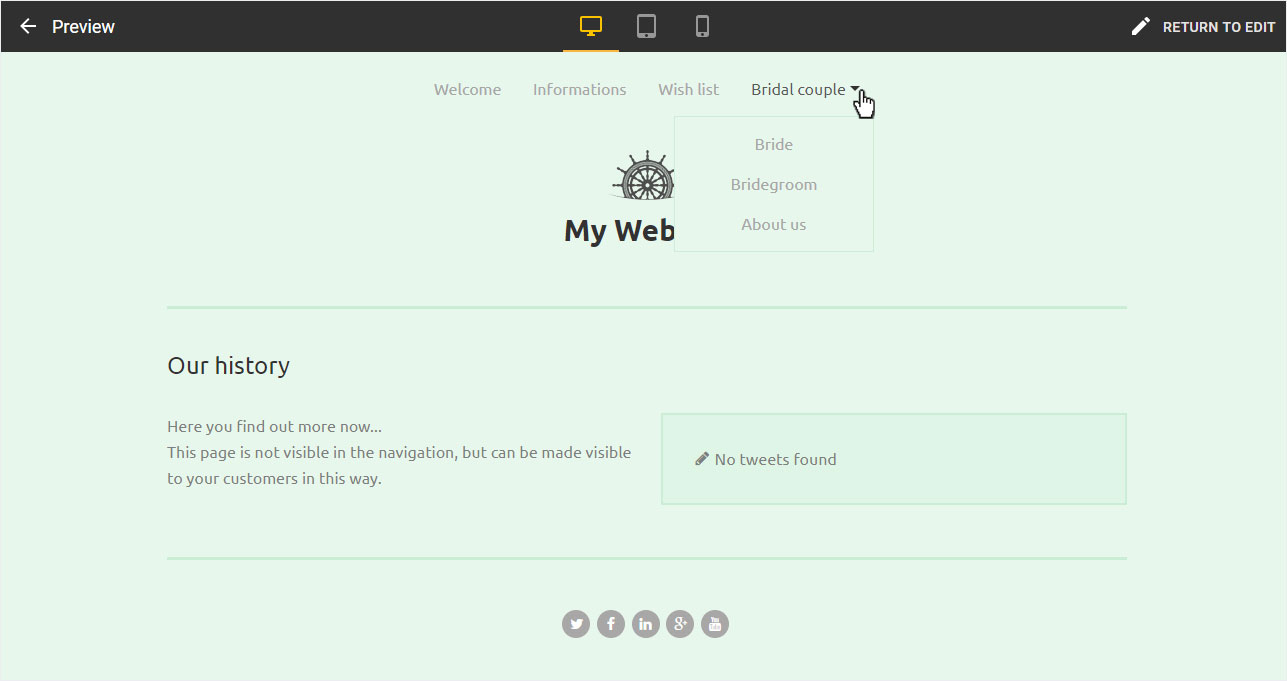
Link to hidden page
You can also create pages that are only accessible via button or text links, but are not displayed in the navigation.
After logging into Designer, follow these steps:
Create page
You begin on the home page of Designer's editor and are thus in the Site editor view.
You can now Add a page by following the instructions Add Page.
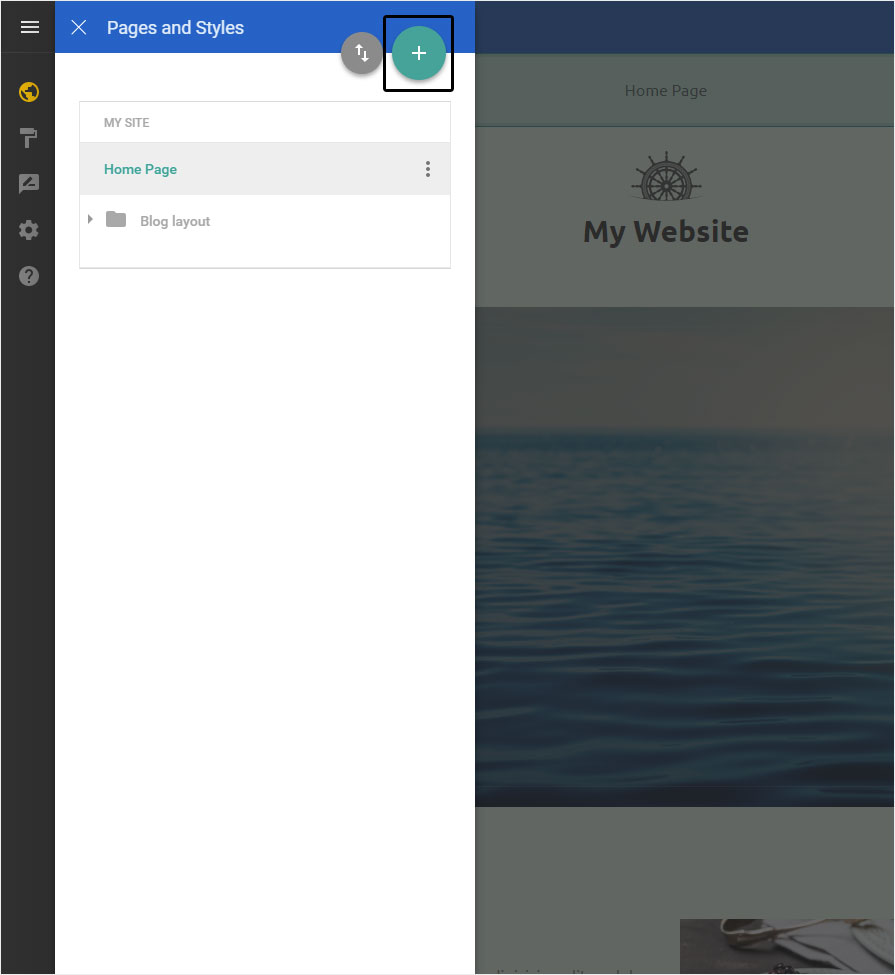
Hide page
You can now hide the newly created page in navigation (Our history in the menu item Bridal couple). Proceed according to the instructions Hide page in navigation.
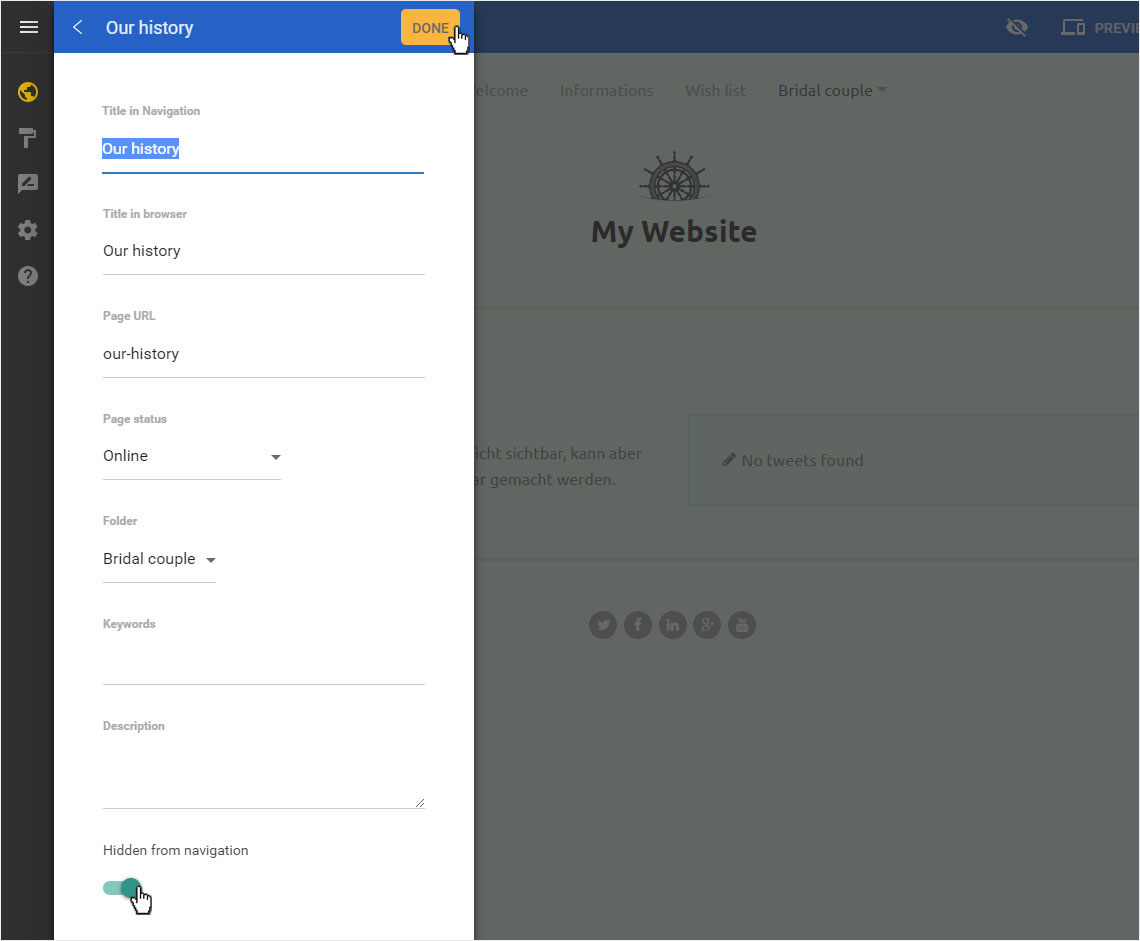
If the page was hidden by the navigation, it is still visible in the edit mode (see area on the left) and is no longer listed in the preview (see area on the right).
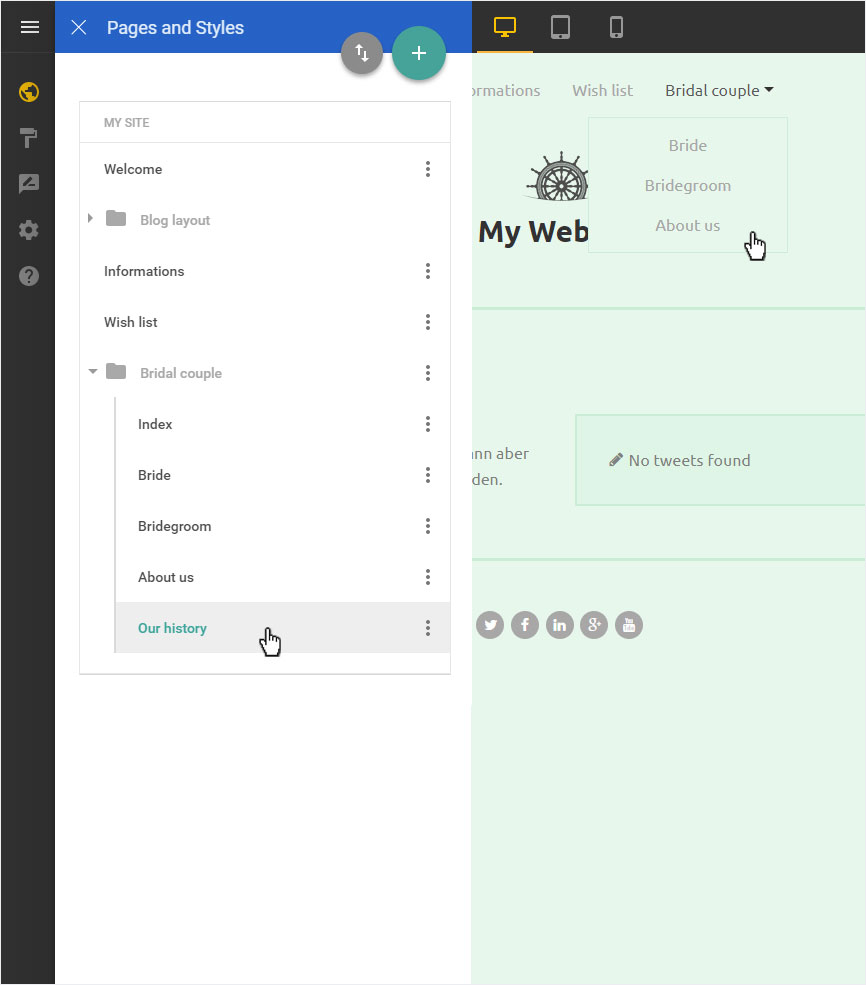
Link to hidden page
To link this hidden page (here, e.g. Our History) on a visible page, proceed as follows:
Page selection
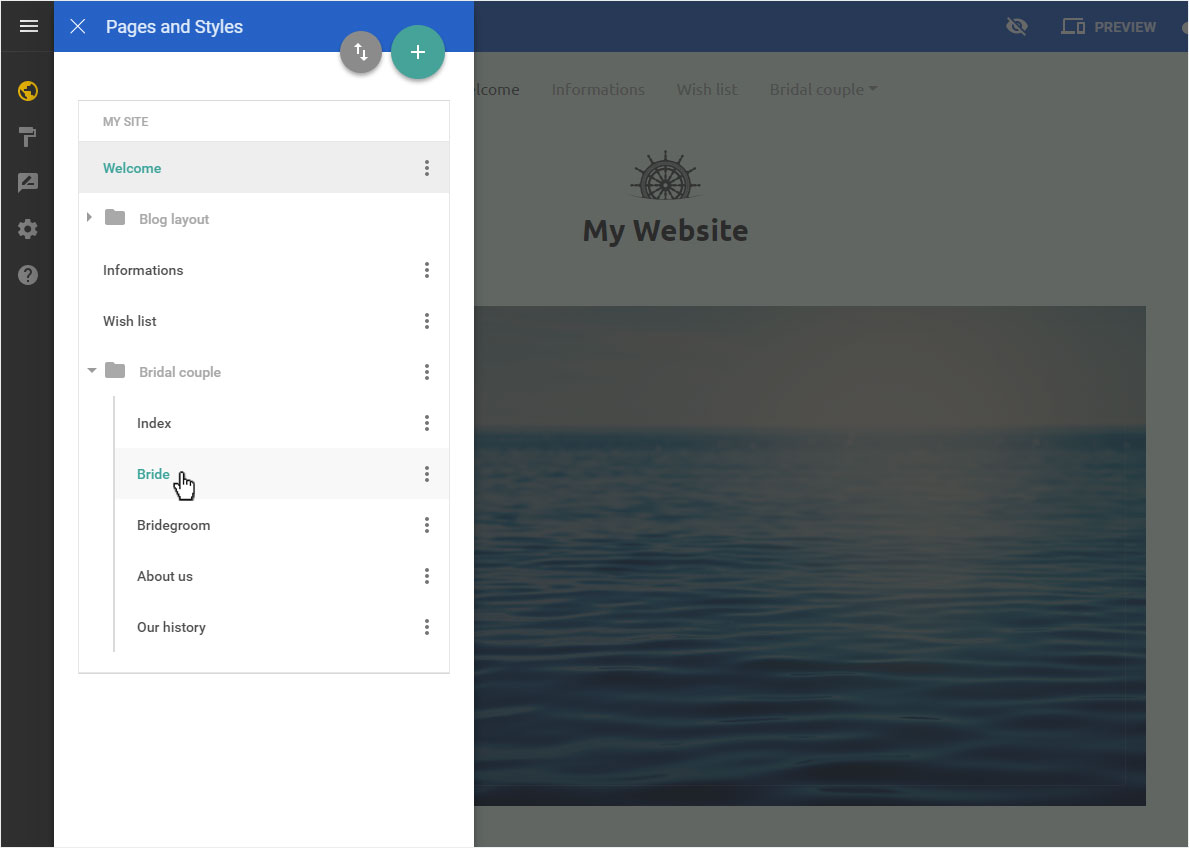
Select the desired page in the page directory (here e.g. Bride).
Button
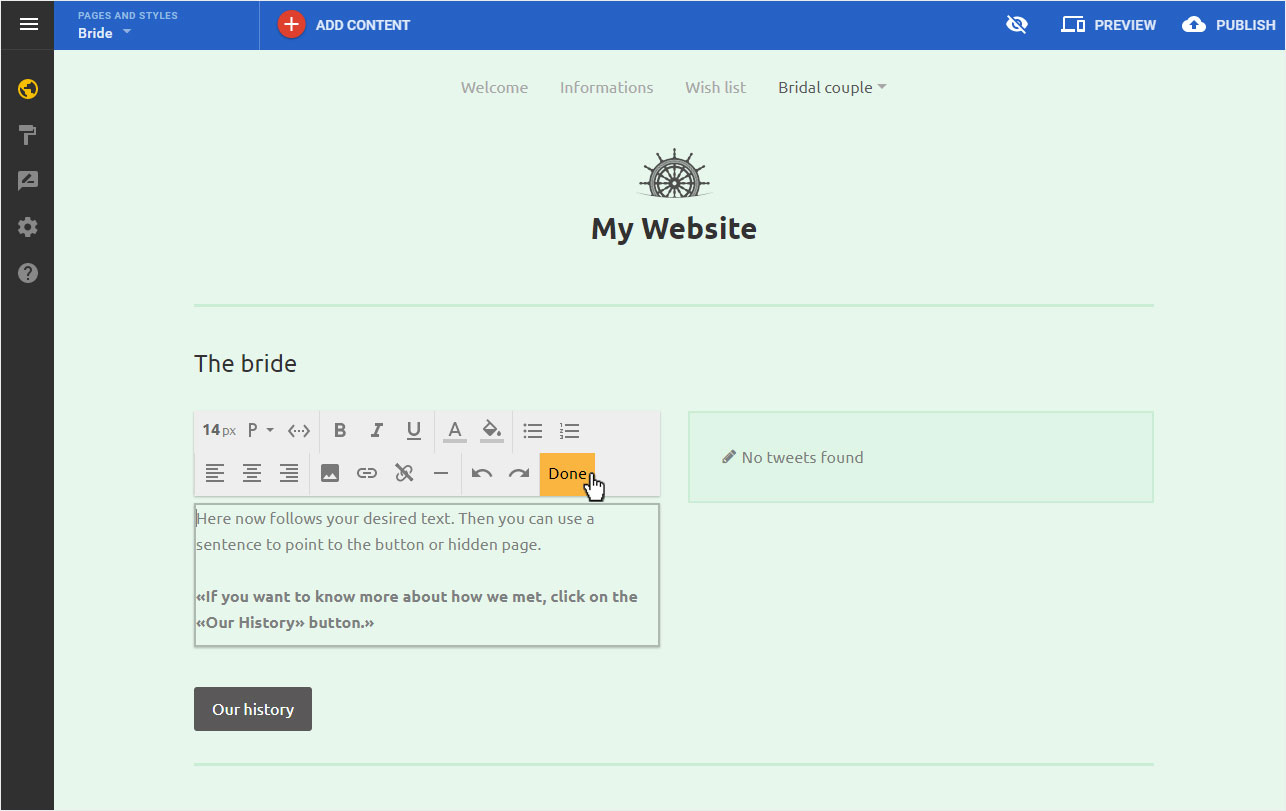
Now insert a button at the desired position on the page via Add content.
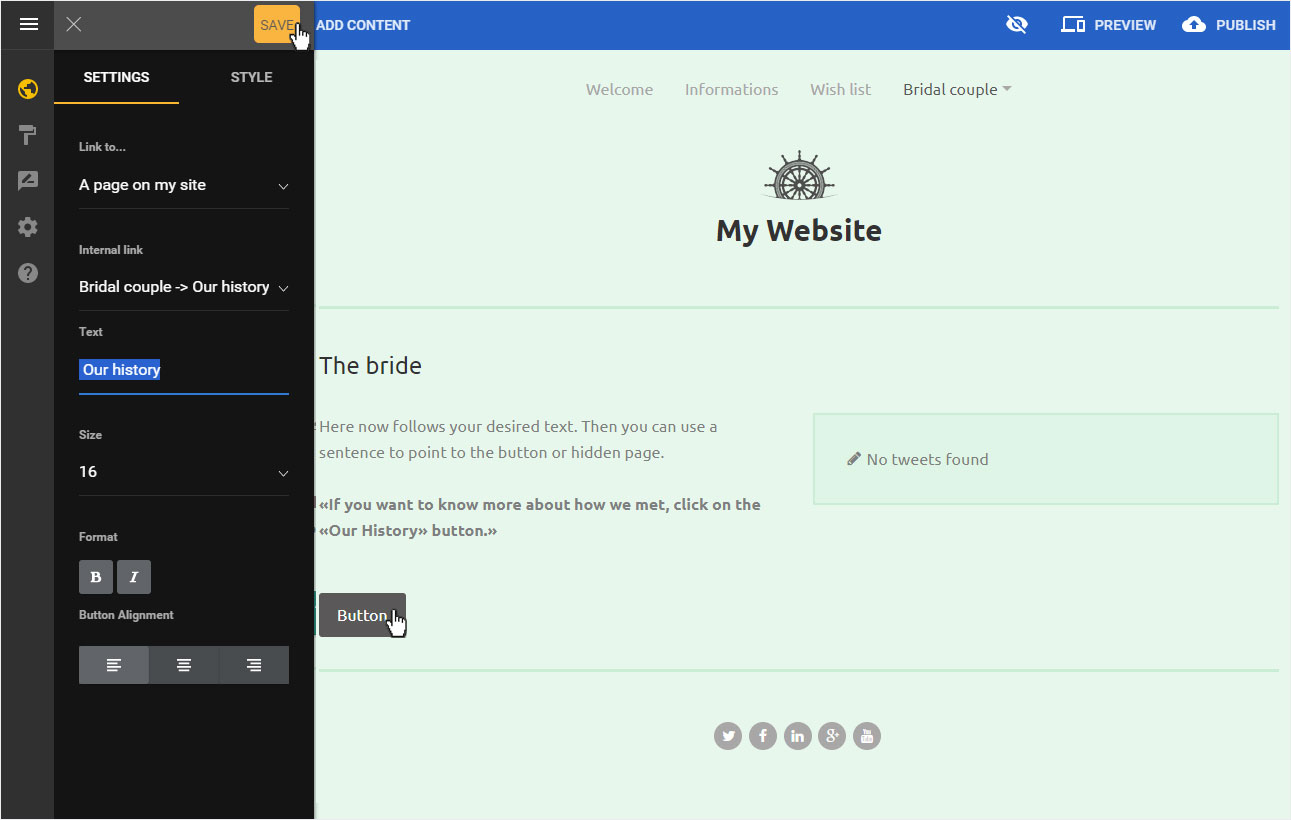
Then click on the button. The setting area of the button opens on the left.
Here, you can link the hidden page by making the following settings:
- Link to...: A page on my site
- Internal link: Select page (here, e.g. Bridal couple – Our history)
- Text: Define button text (here e.g. Our History)
You can also make some formatting settings if you like. Then save your changes by clicking on Save.
Preview
Now click on Preview to display the page with the integrated button (here e.g. Bride).
Now click on the button.
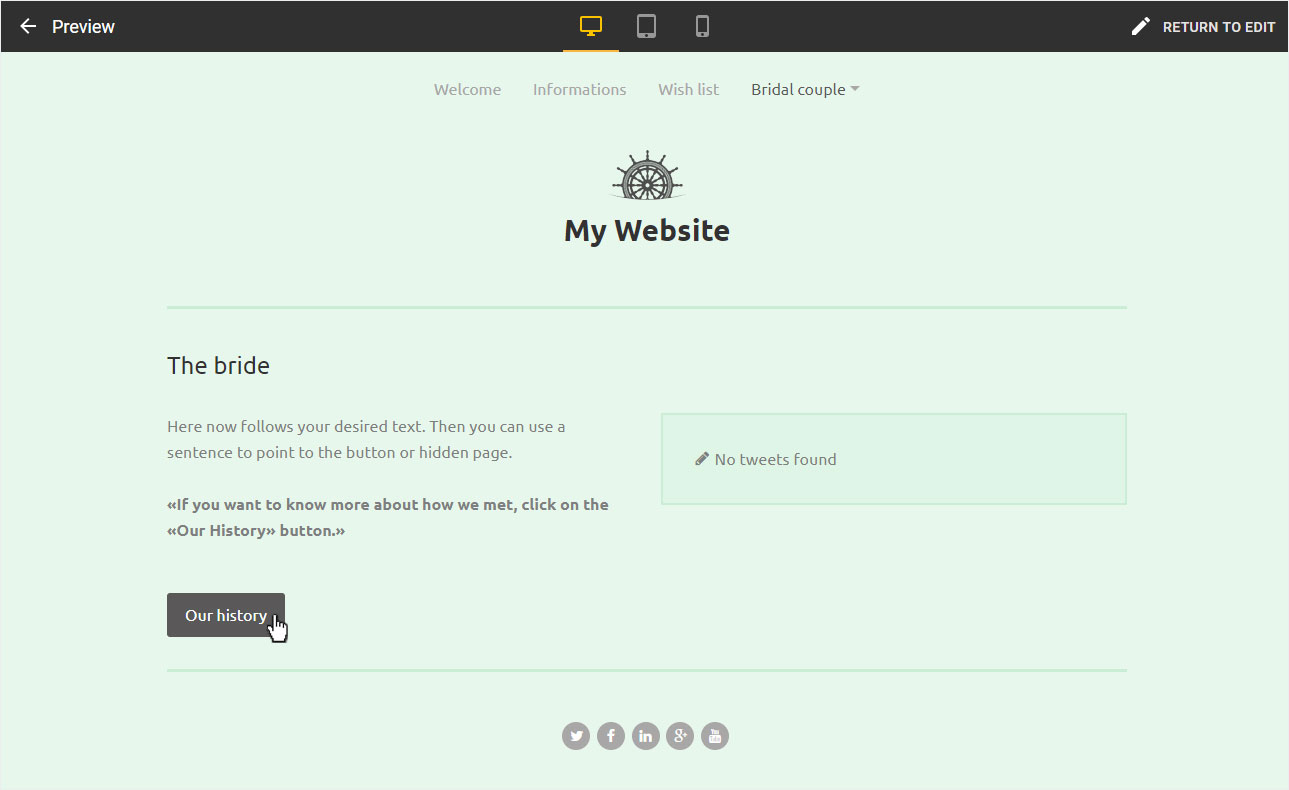
The linked page (here e.g. Our History) opens.
As you can see, this page is not visible in the navigation, but can be accessed by clicking on the button.