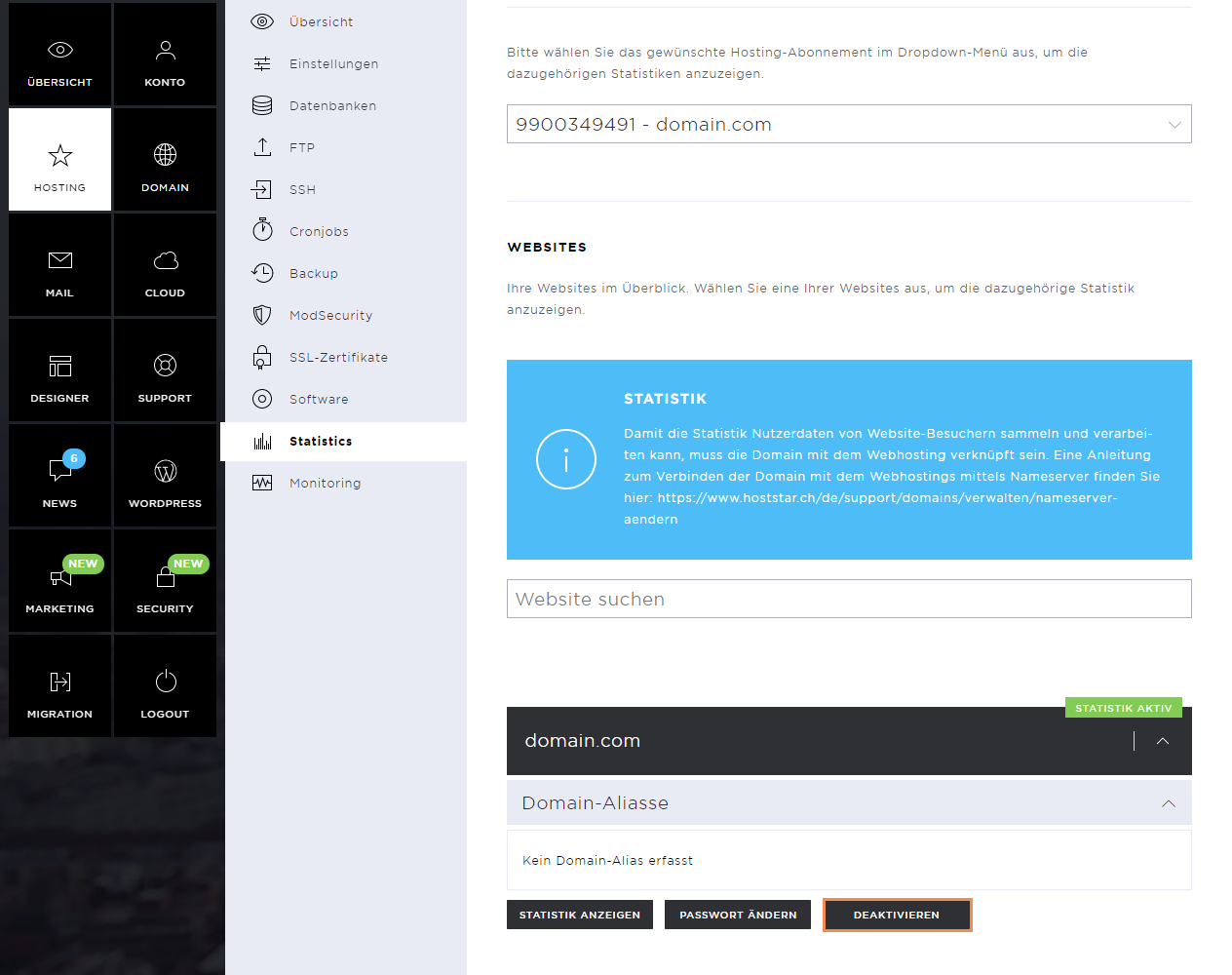
Statistics
The Hosting menu item comprises the following sub-pages: Overview, Settings, Databases, FTP, SSH, Cronjobs, Backup, ModSecurity, SSL certificates, Software, Statistics, and Monitoring.
Under Statistics, you can check your website's statistics with a variety of detailed views.
Statistics Overview
Statistics help you analyse and optimize your website and attract new visitors. However, if you want to analyse data in more depth, we recommend the use of web applications that have been specially developed for this purpose.
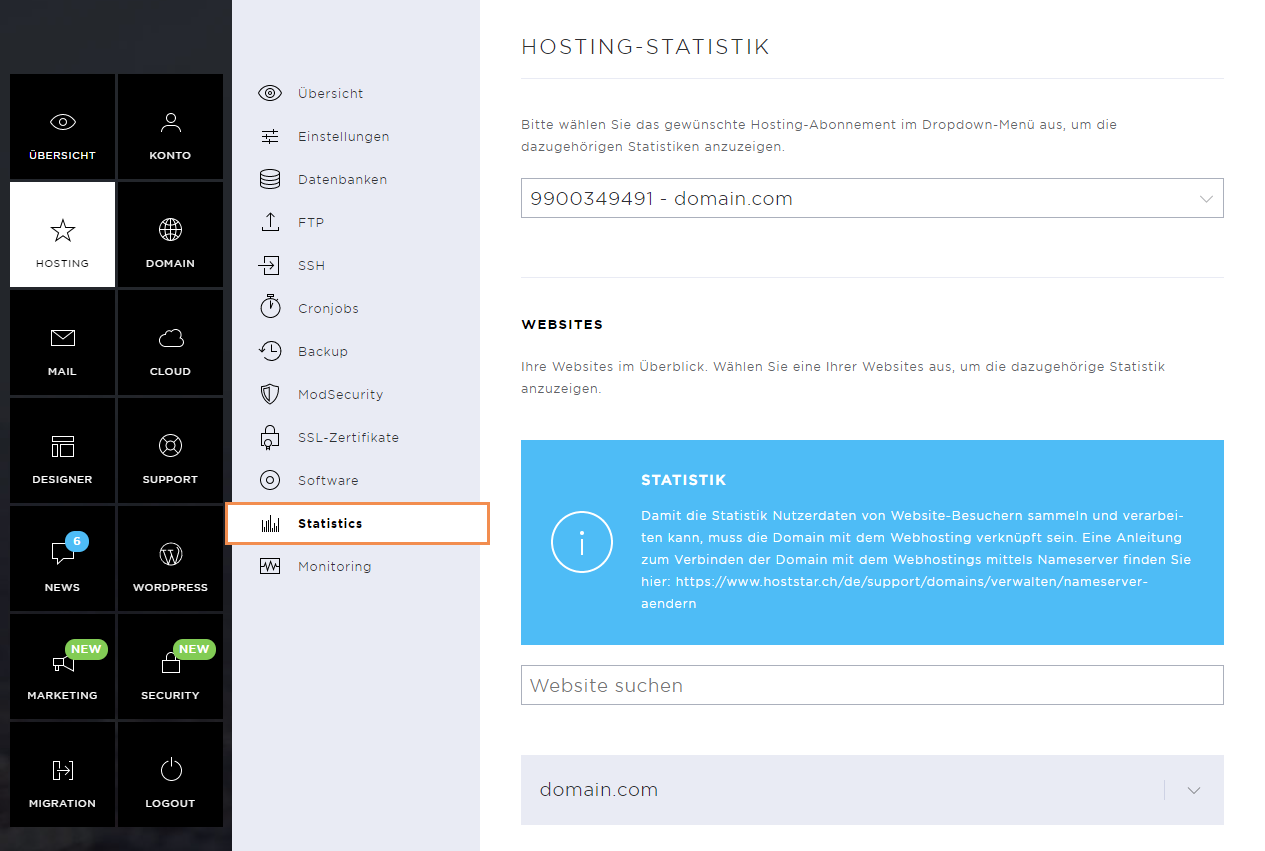
Enable Statistics
You must enable the statistics for each website. To do this, click on the domain concerned and then on Enable.
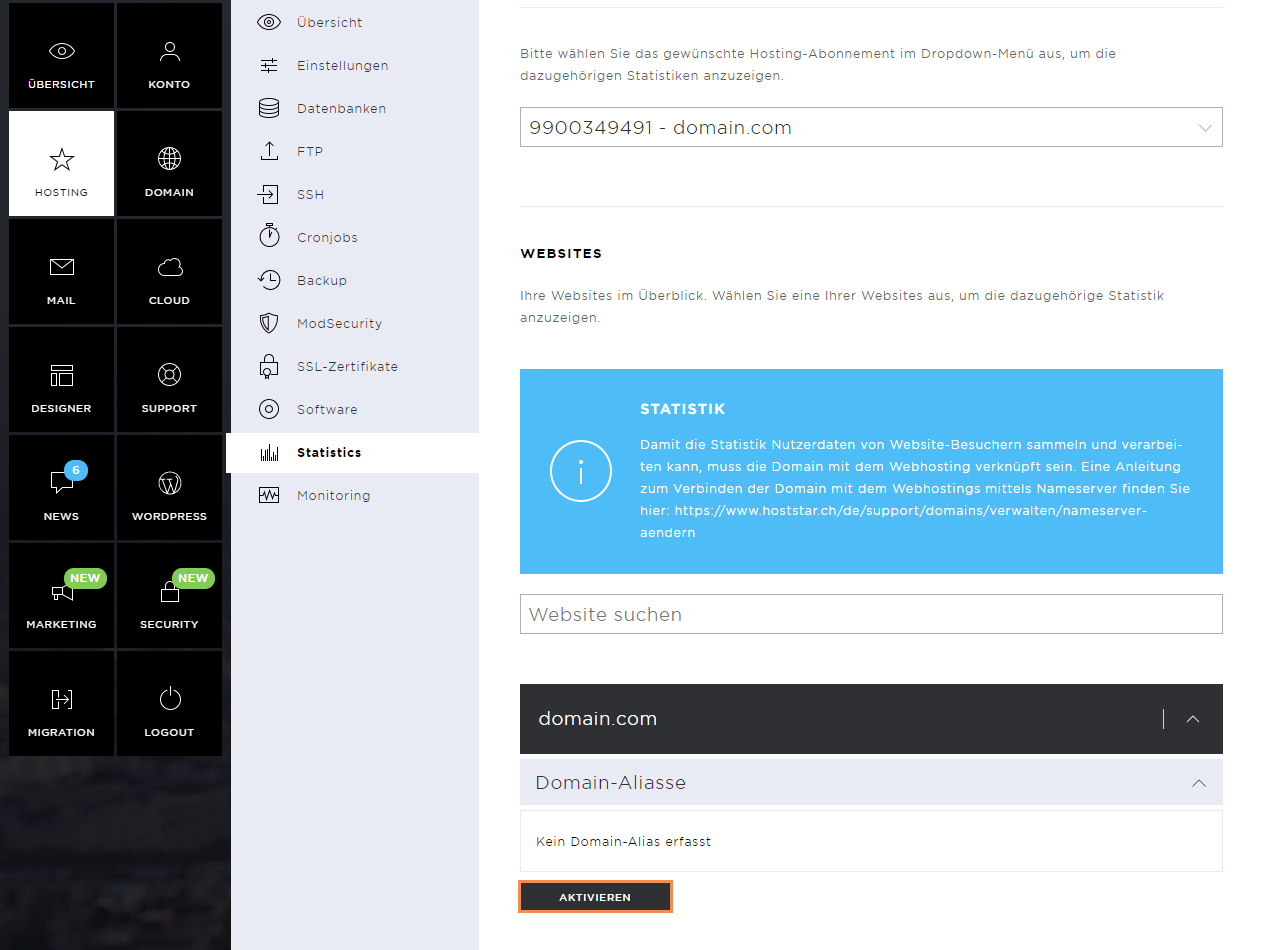
Now enter the desired password and click on Enable again.
Please read the information carefully before this activation. Since the data is collected from the log data, it is necessary that the domain points to the correct server.
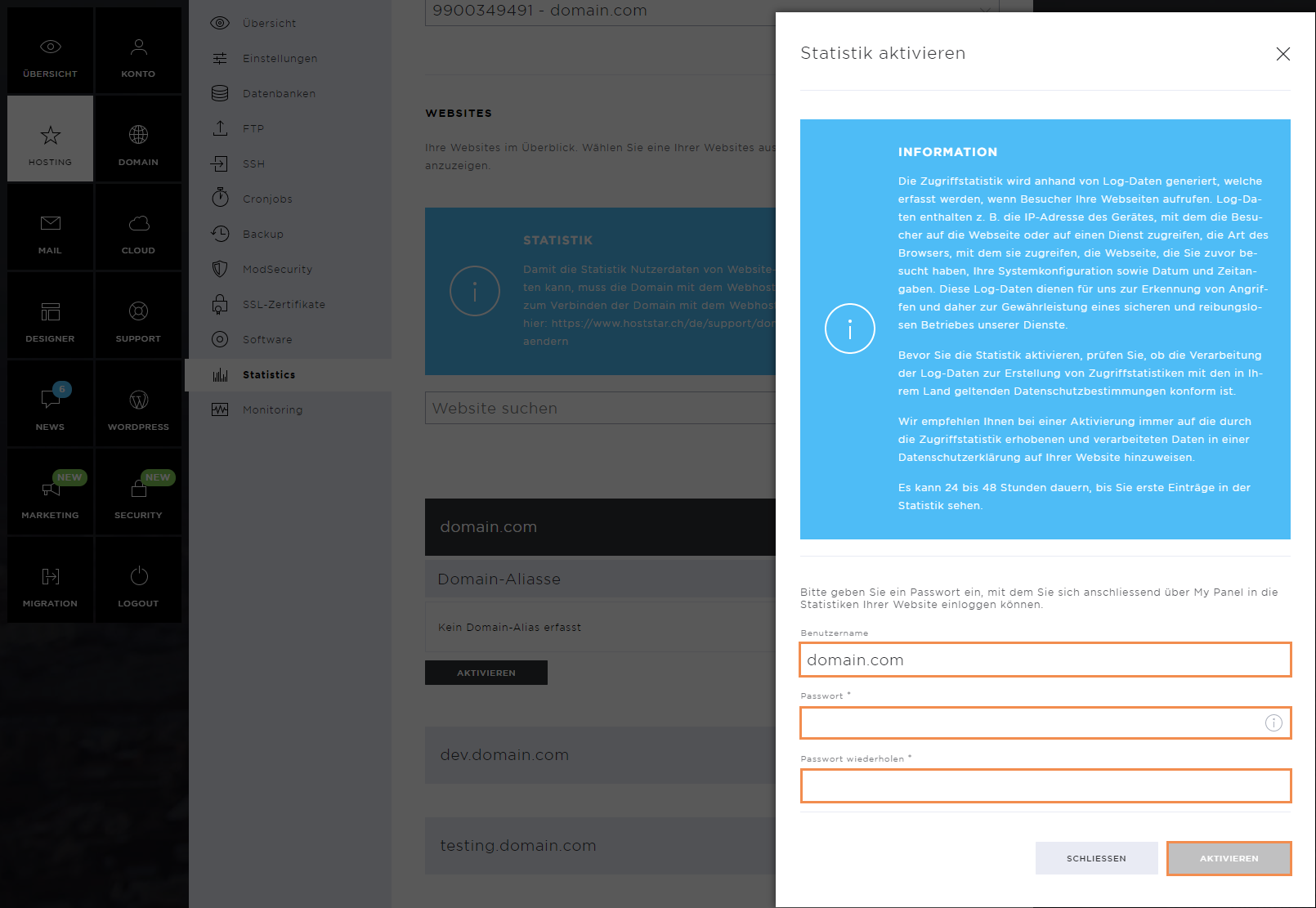
As soon as the statistics have been enabled, a success message appears. It can take anywhere between 24 and 48 hours until data is displayed for the first time.
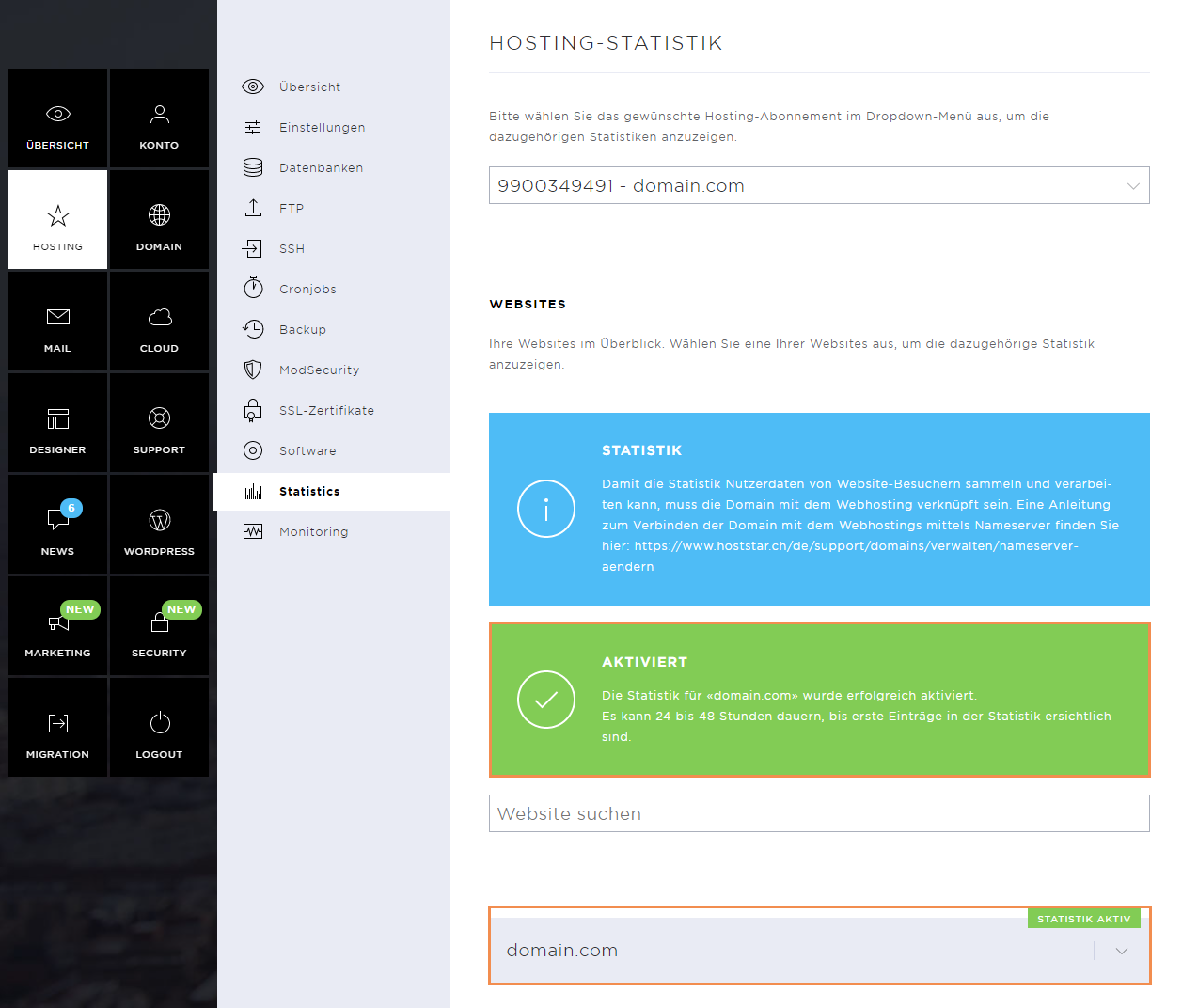
Show Statistics
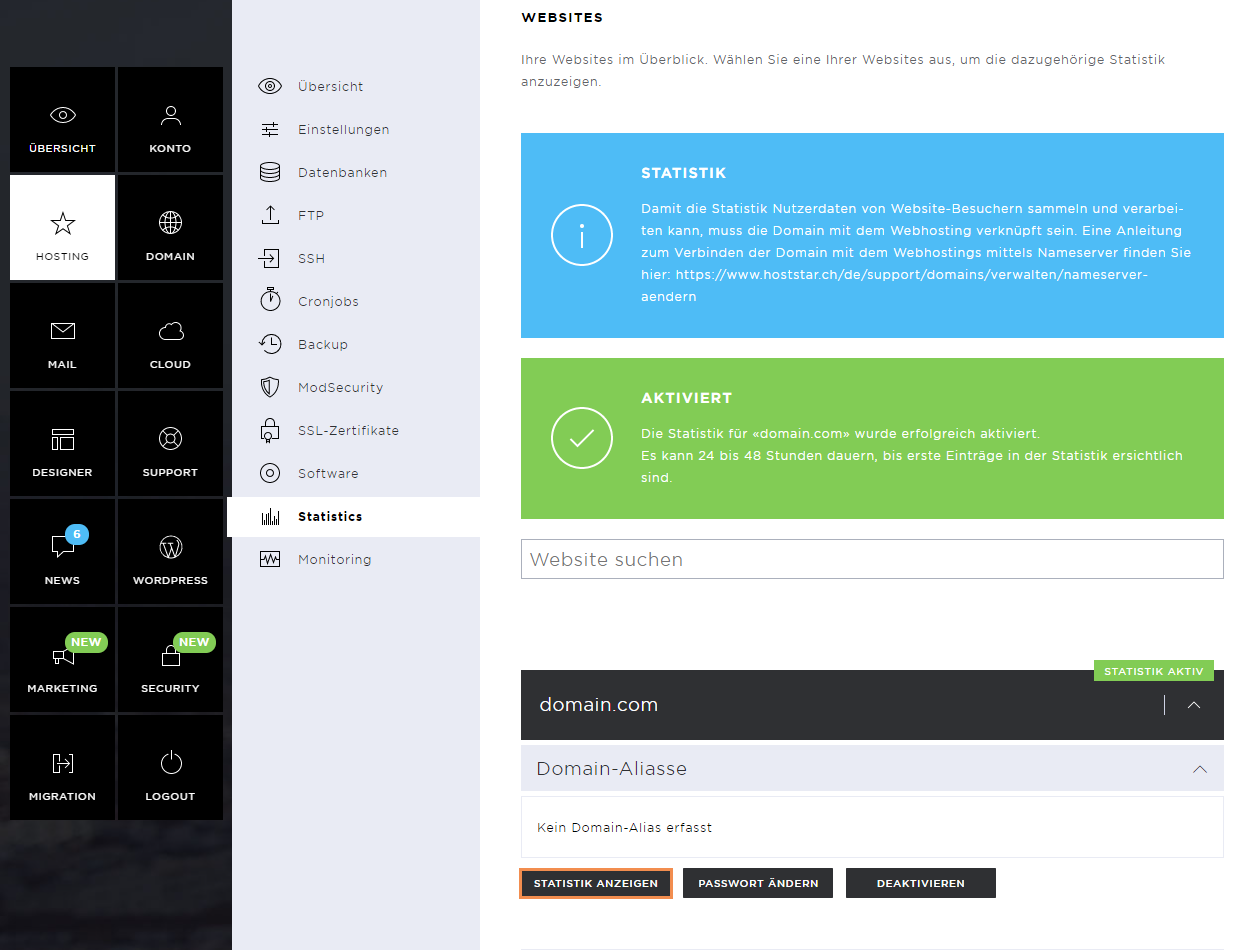
To view the statistics of the website, click on the Show Statistics button.
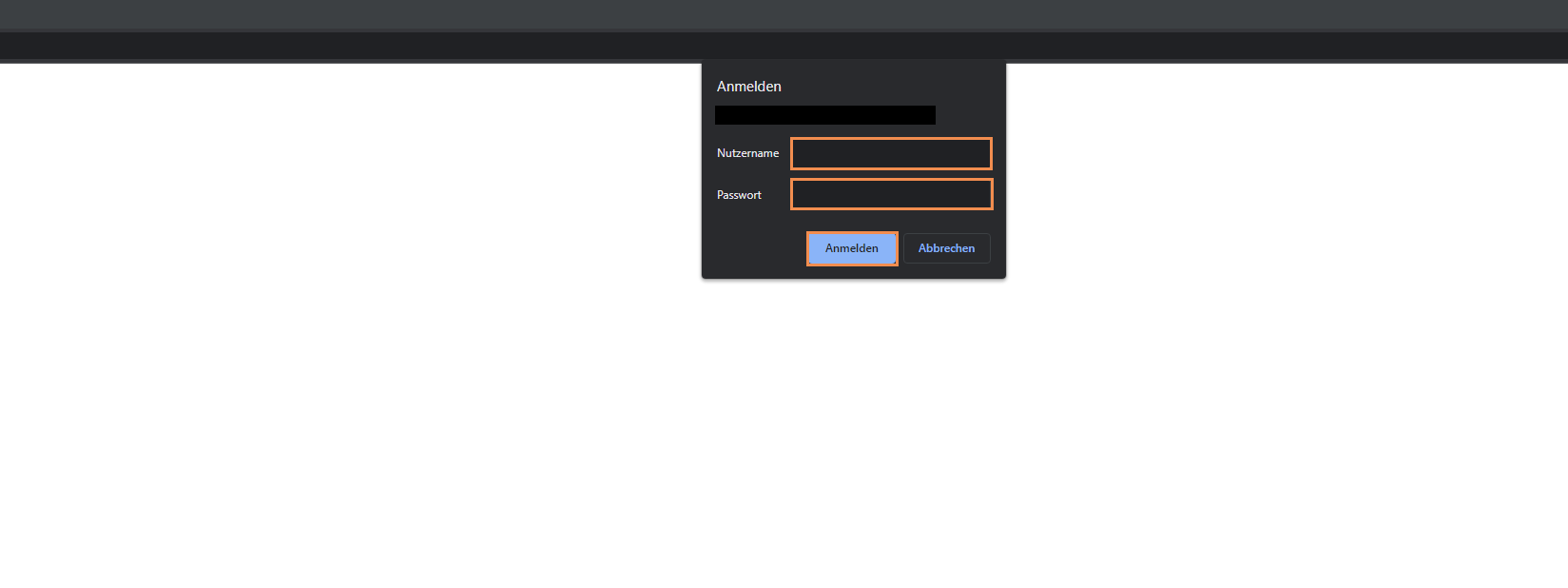
In the new window, enter the user name and the password you have defined. The user name is always the domain for which you want to view the statistics.
Then click on Sign in.
As soon as you are logged in, you will see an overview of the web calls. Here you can examine the data collections individually.
Please note that due to GDPR laws, not all data can be viewed, which is why some areas only display general information.

Change password in Statistics
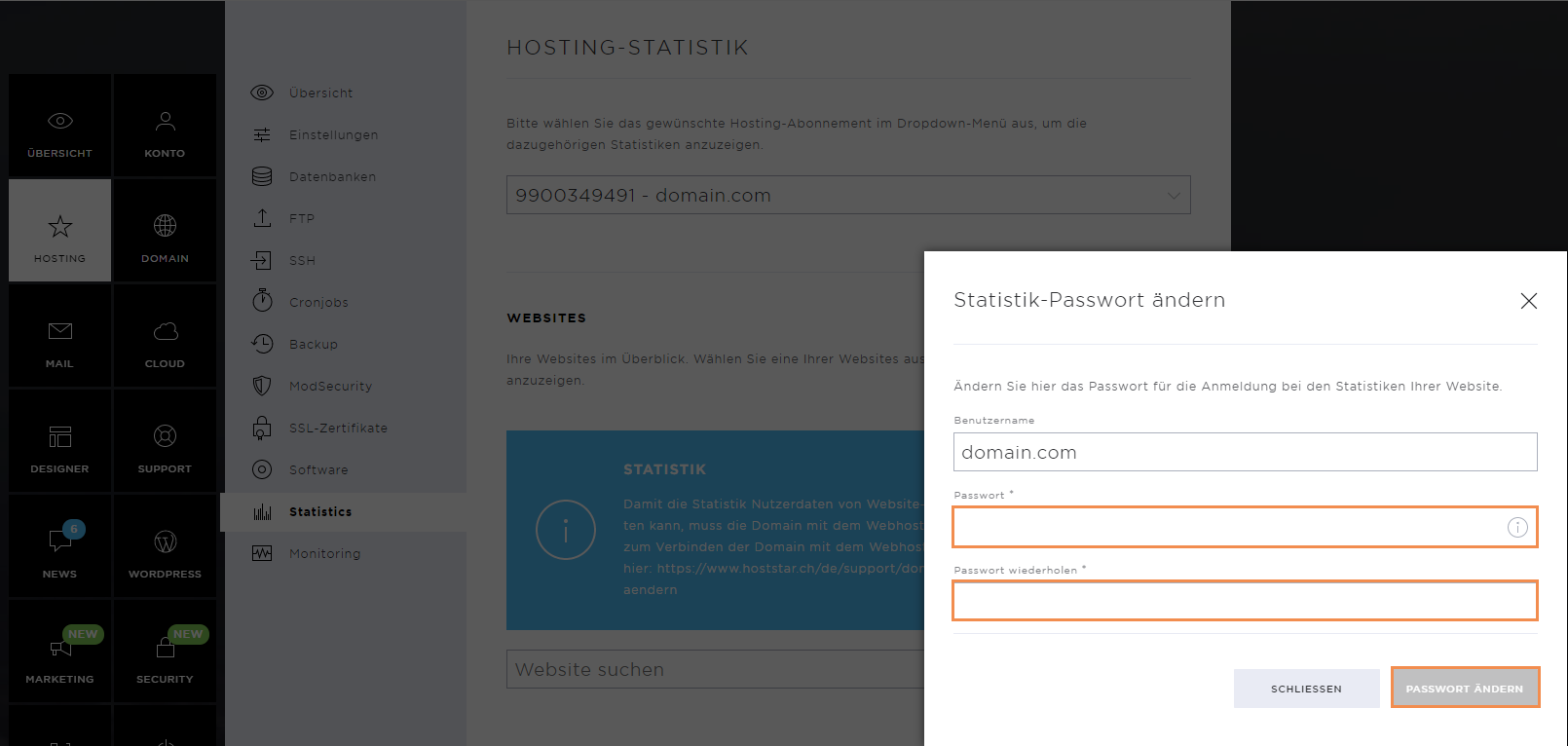
If you need a new password for the statistics, click on Change password.
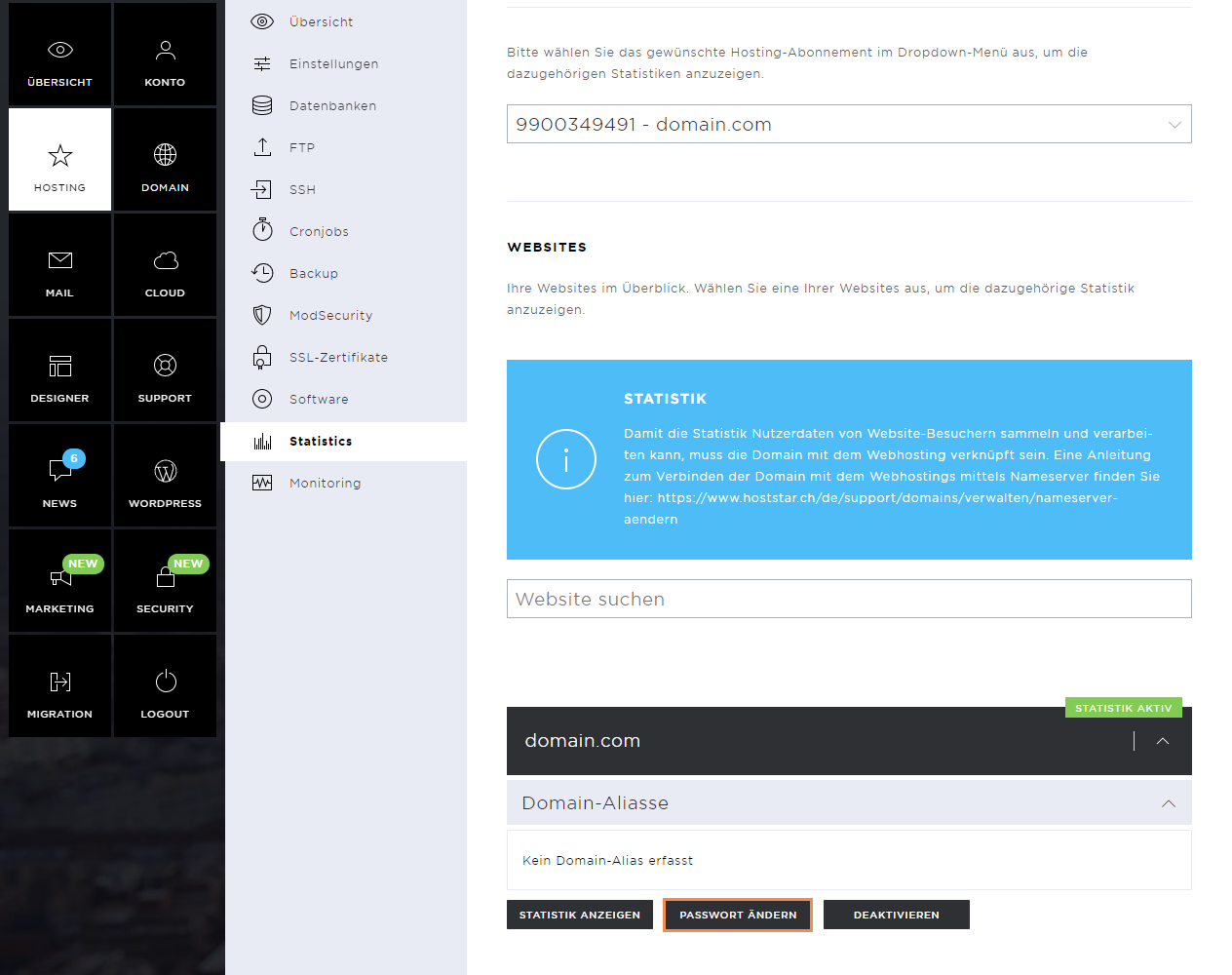
Enter the new password and save the information by clicking on Change password again.
Disable Statistics
To disable the statistics of a page, click the Disable button.
Confirm the deactivation by clicking on Disable again.