ModSecurity
The Hosting menu item comprises the following sub-pages: Overview, Settings, Databases, FTP, SSH, Cronjobs, Backup, ModSecurity, SSL certificates, Software, Statistics, and Monitoring.
Under the heading ModSecurity you have access to the web application firewall and can manage its rules.
ModSecurity Overview
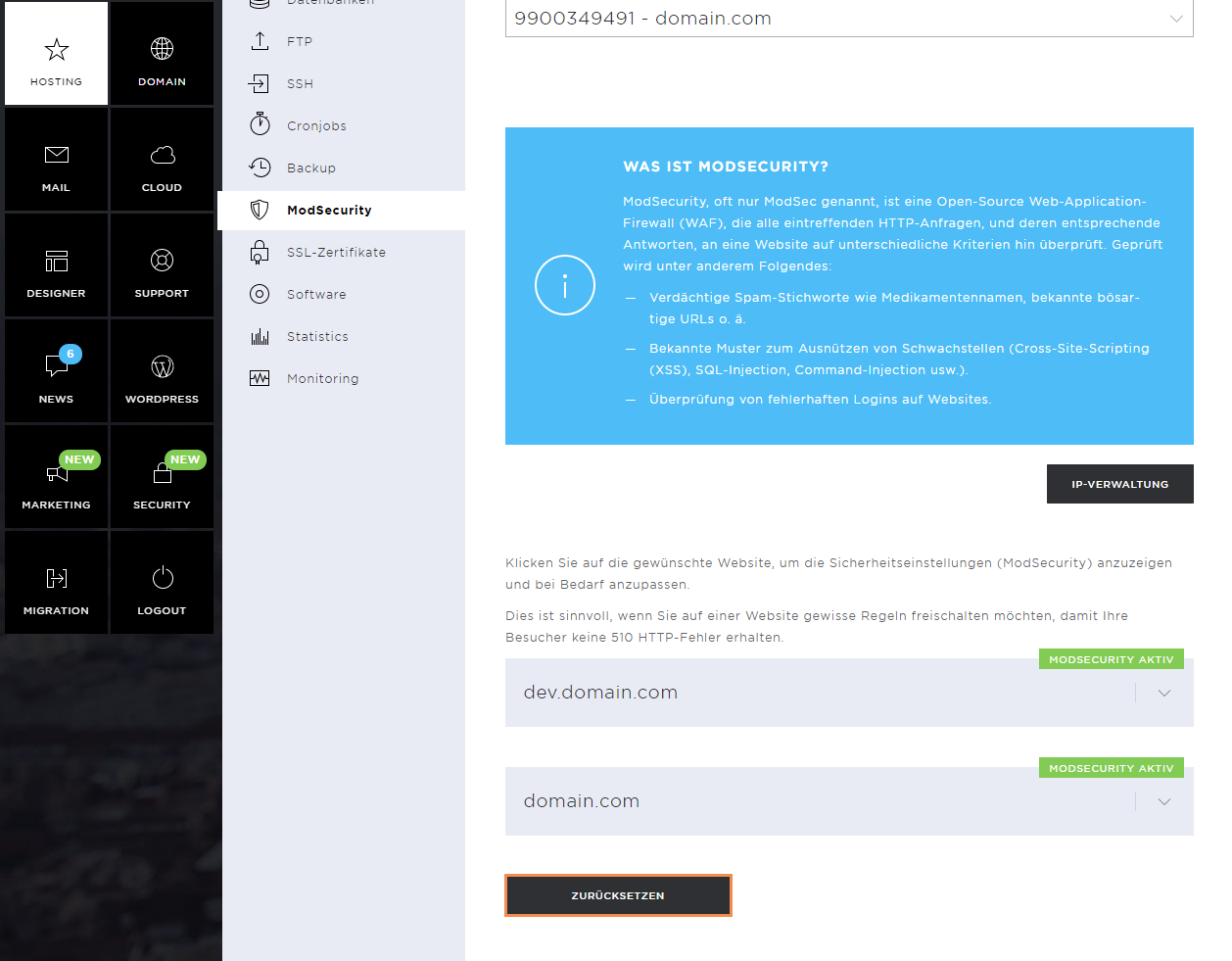
ModSecurity, often just called ModSec, is an open-source web application firewall (WAF) that checks all incoming HTTP requests, and their corresponding responses, to a website against various criteria. Among other things, this checks for the following:
- Suspicious spam keywords such as drug names, known malicious URLs or similar.
- Known patterns for exploiting vulnerabilities (cross-site scripting (XSS), SQL injection, command injection, etc.).
- Check for incorrect logins to websites.
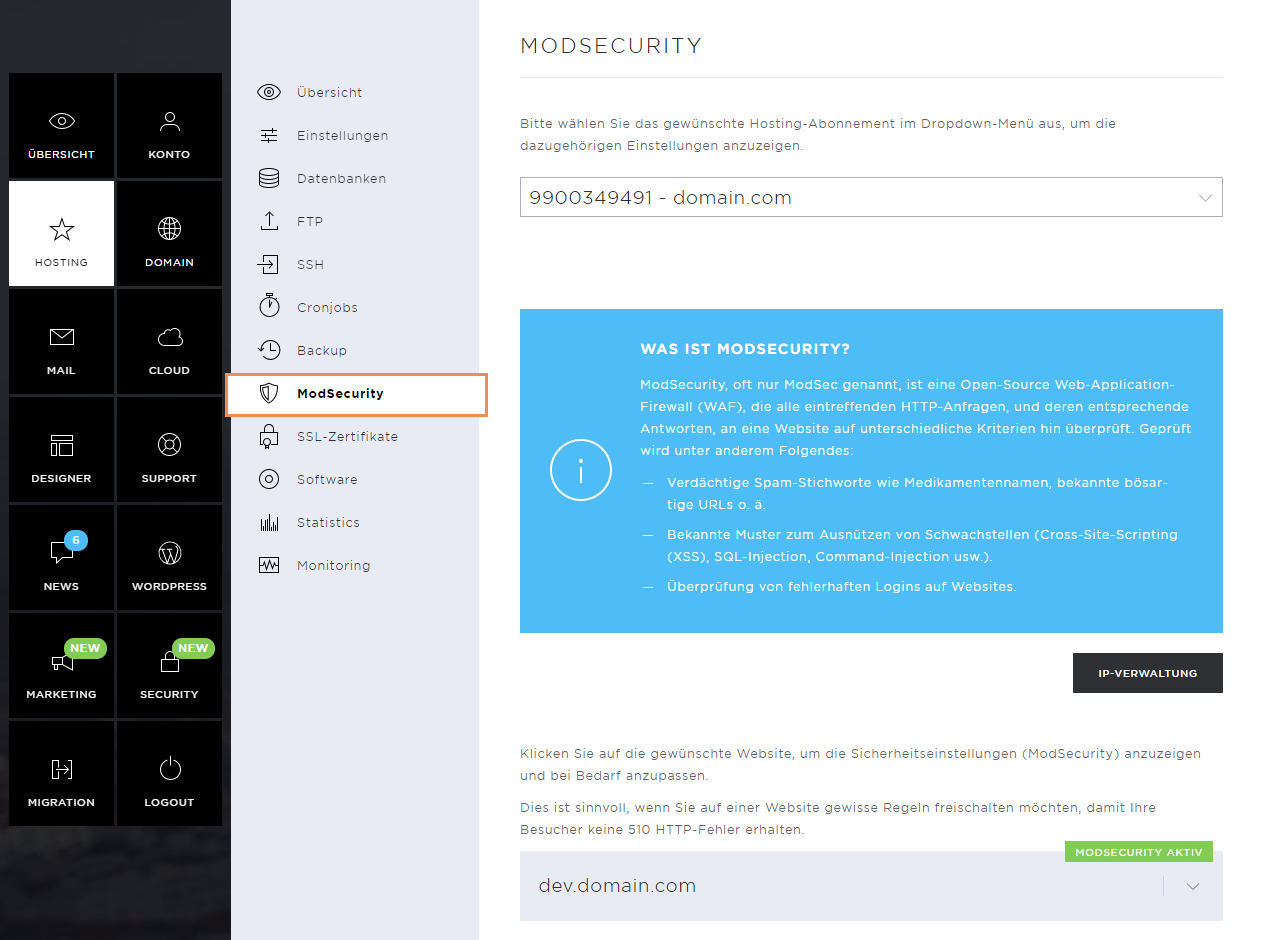
Here you can see which websites are actively protected by ModSecurity.
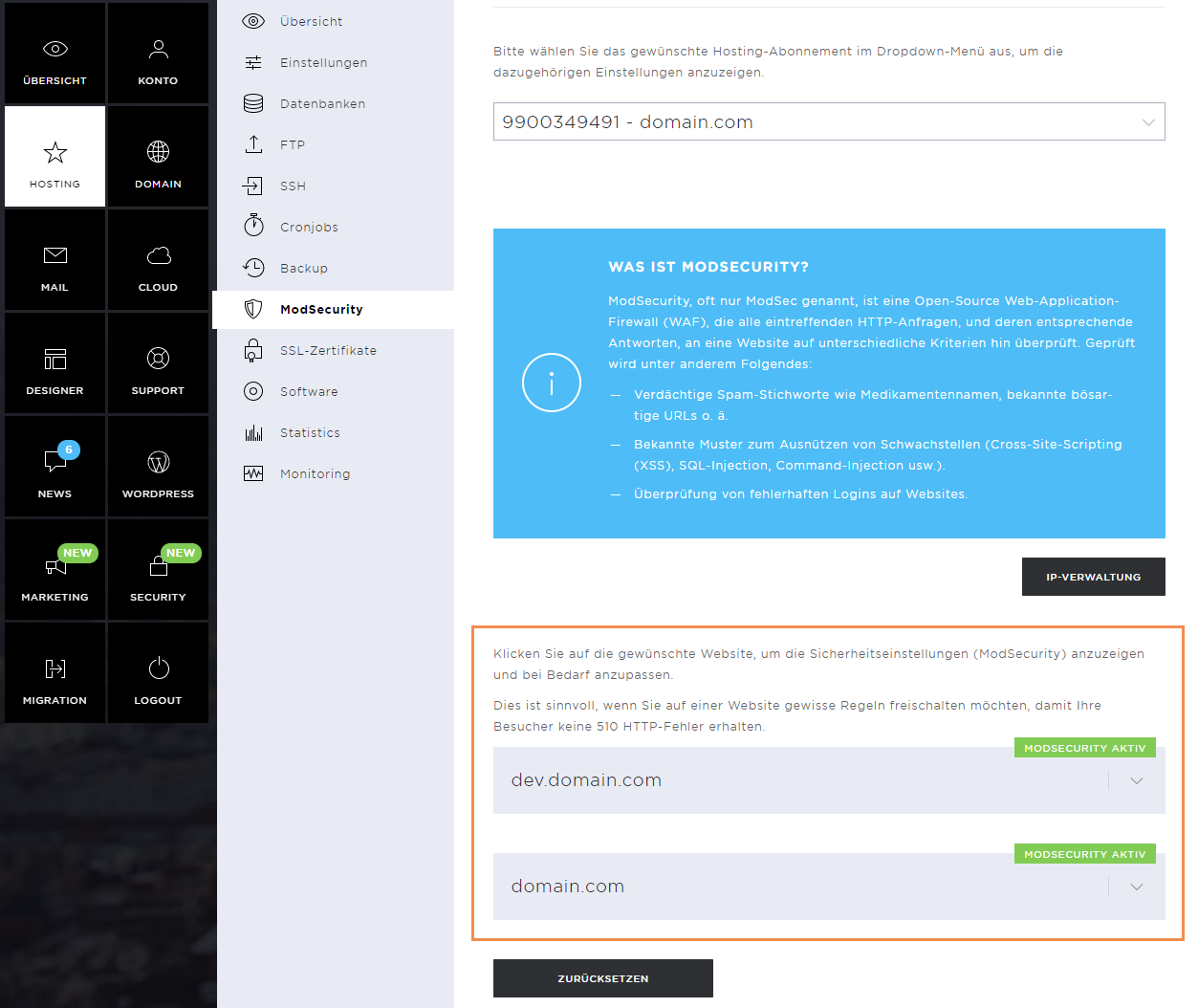
ModSecurity Security Rules
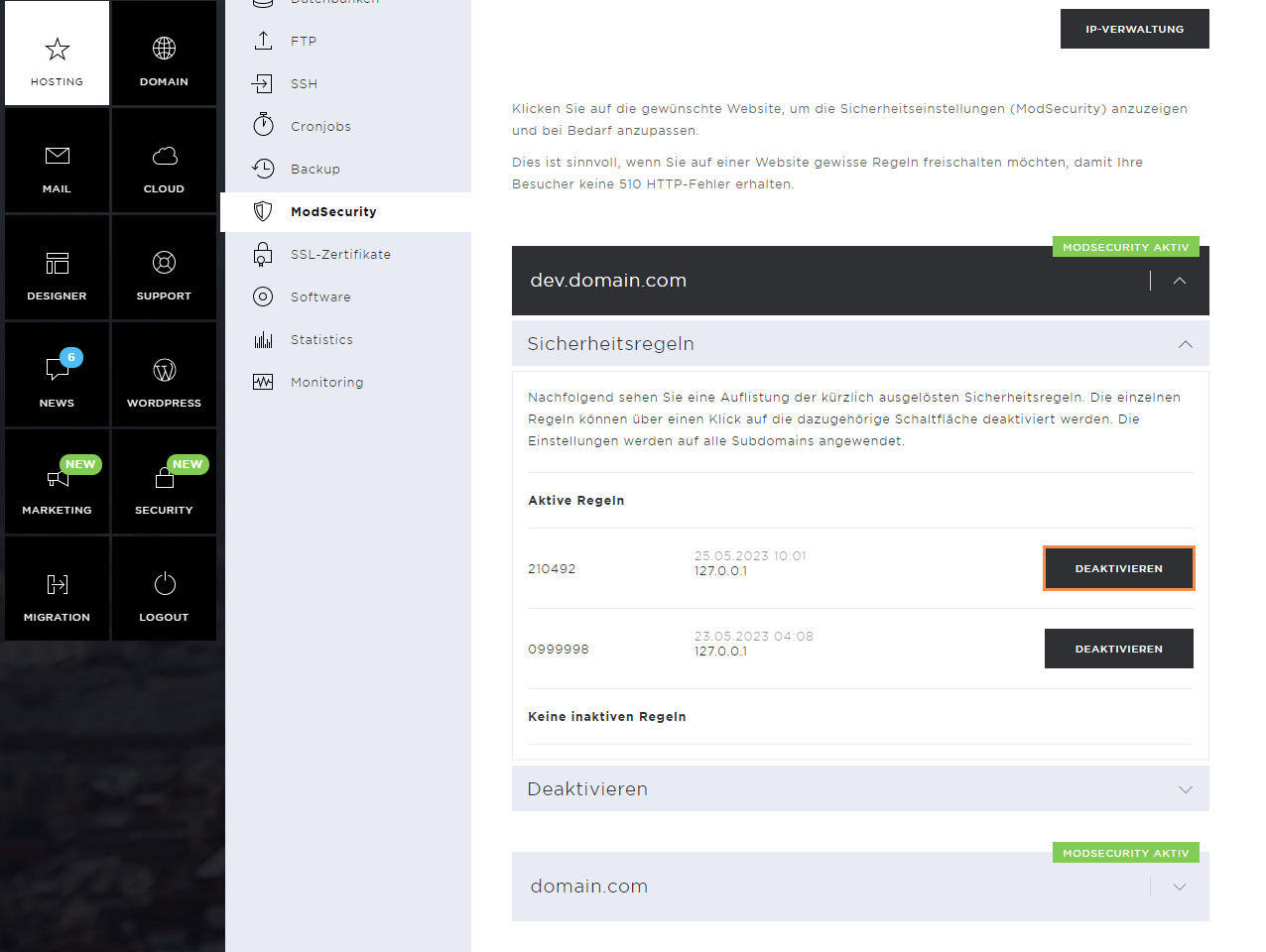
To check the active and inactive rules of a website, click on the Active Security rules section.
Here you can see the information of which rule has been triggered for which IP address, and you can deactivate those rules if necessary.
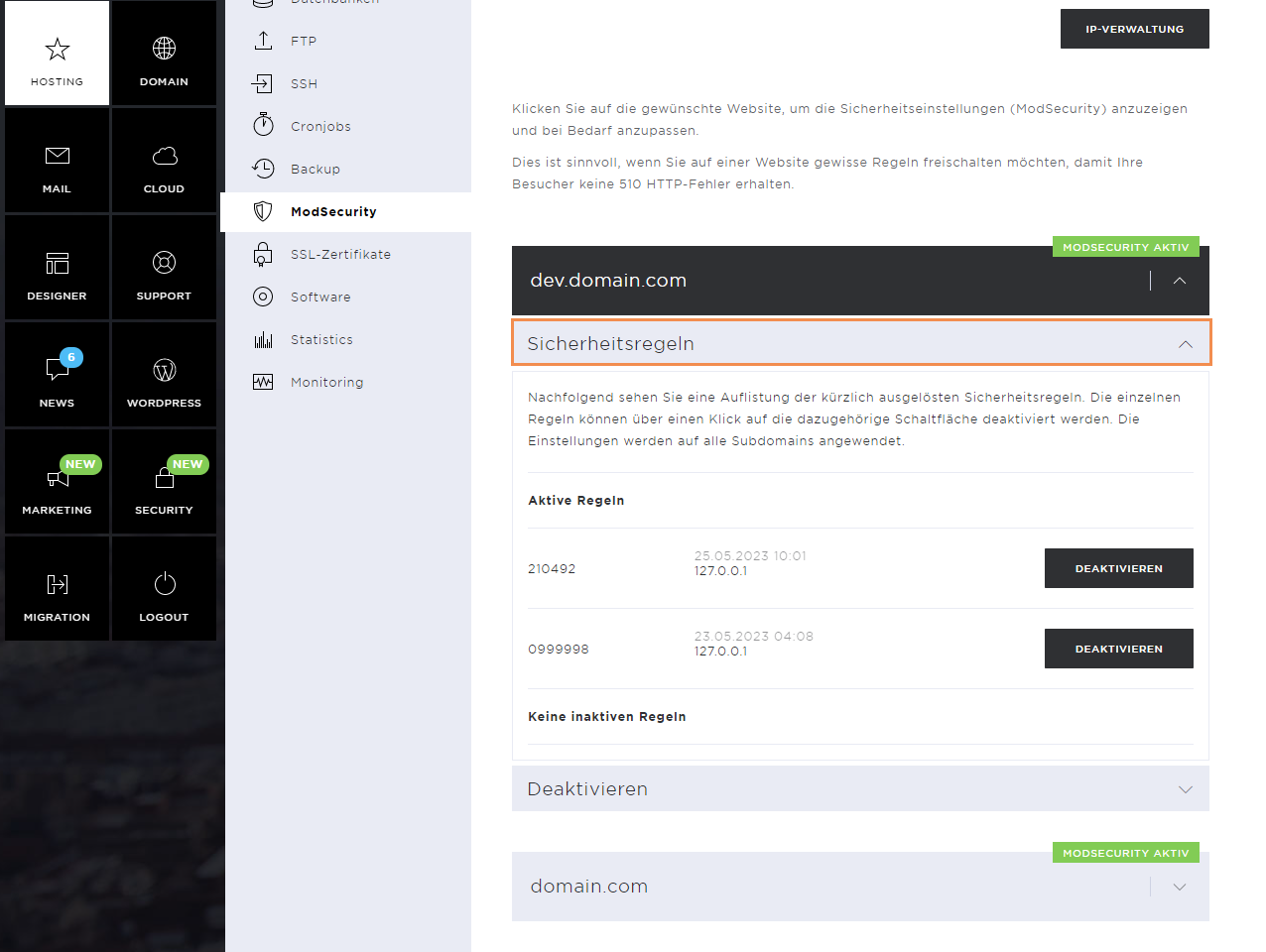
Disable Security Rules
To disable a rule, click on Disable. Note that you should only deactivate rules that have been triggered for your own IP address.
If you also disable security rules for other IP addresses, this could pose a security risk. Modern websites use plugins and APIs (application programming interface). These can trigger ModSecurity security rules. So if you are going to work on your website for a long time, it is better to deactivate ModSecurity for a few hours.
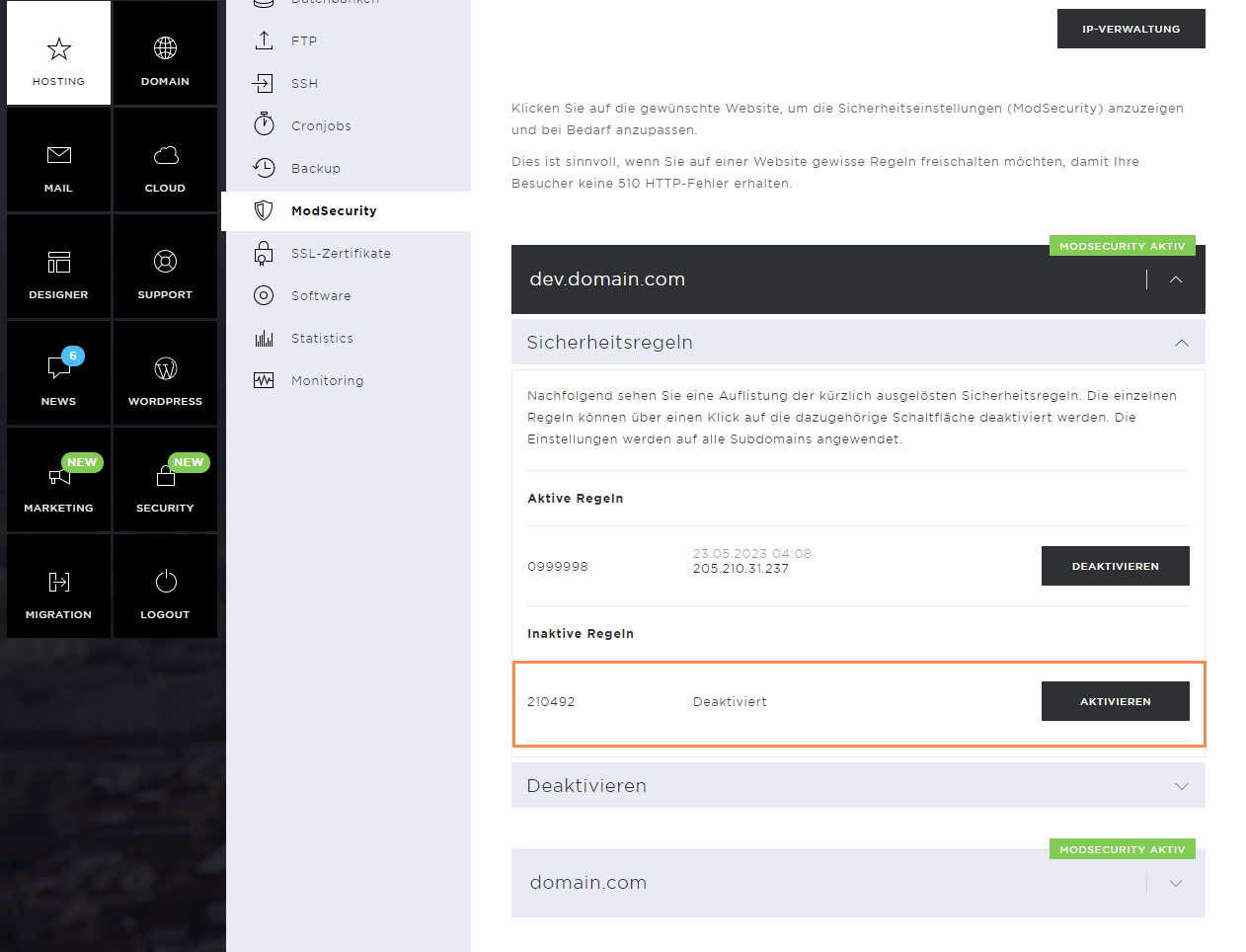
As soon as the rule has been deactivated, it appears under Inactive Rules. If necessary, it can be reactivated by clicking on Enable.
Disable ModSecurity
Modern websites use plugins and APIs (application programming interface). These can trigger ModSecurity security rules. So if you're going to work on your website for a long period, it may be better to deactivate ModSecurity for a few hours.
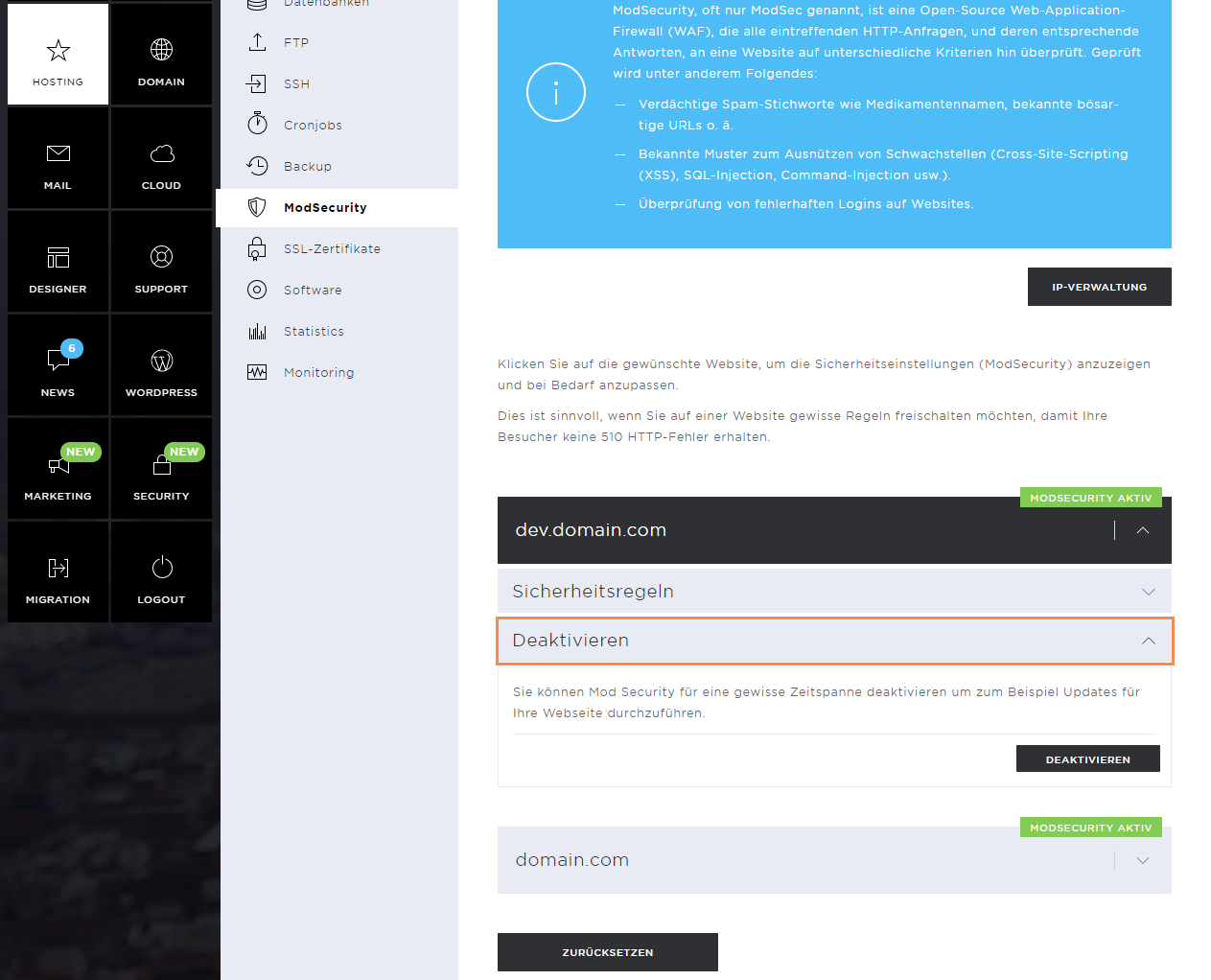
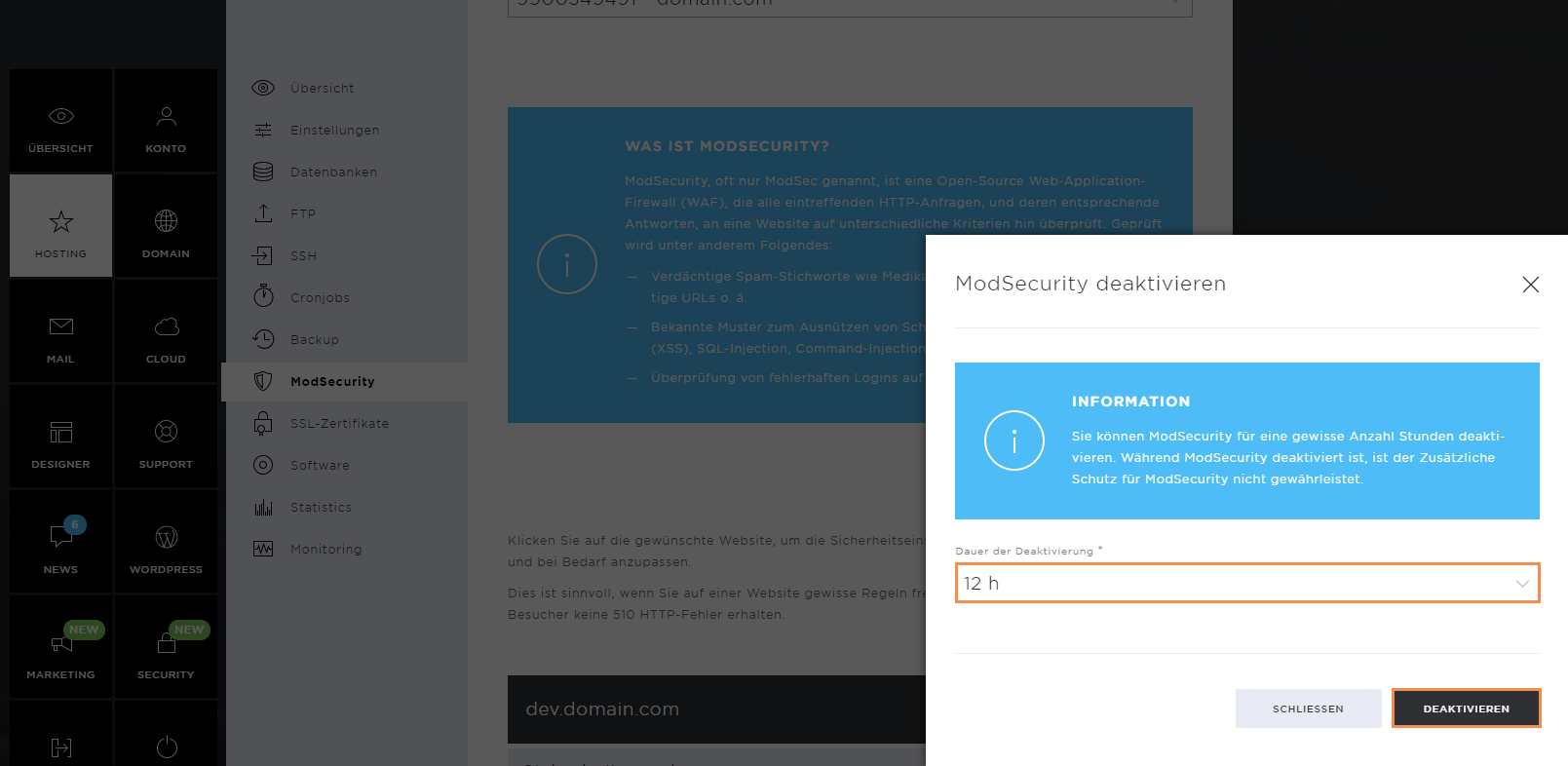
To do this, click on Disable.
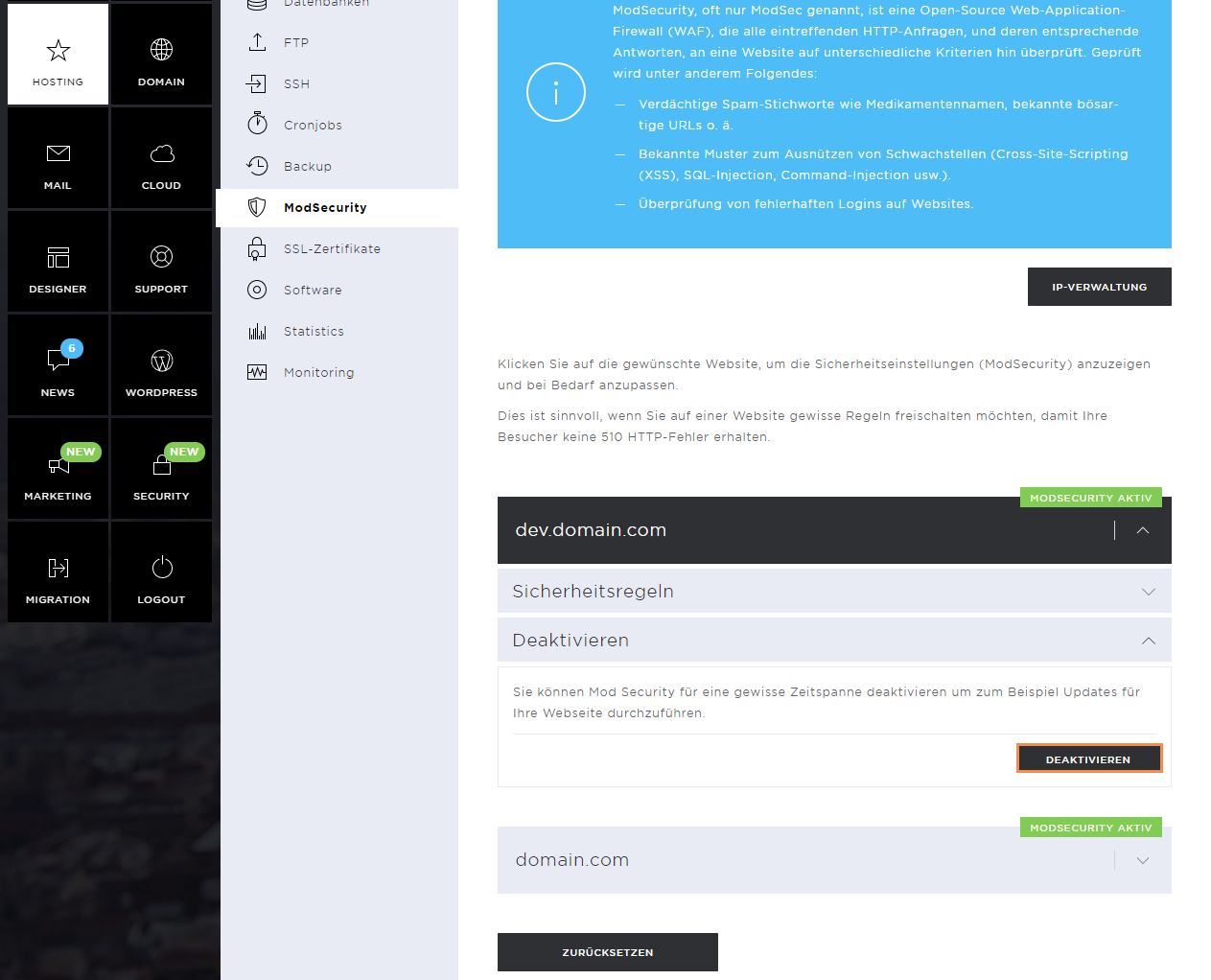
Now select the duration of the deactivation and confirm this by clicking on Disable.
After the selected time has elapsed, the ModSecurity automatically reactivates.
ModSecurity IP Administration
Another way of not triggering ModSecurity rules would be to authorize your own IP address. You can do this by clicking on IP management.
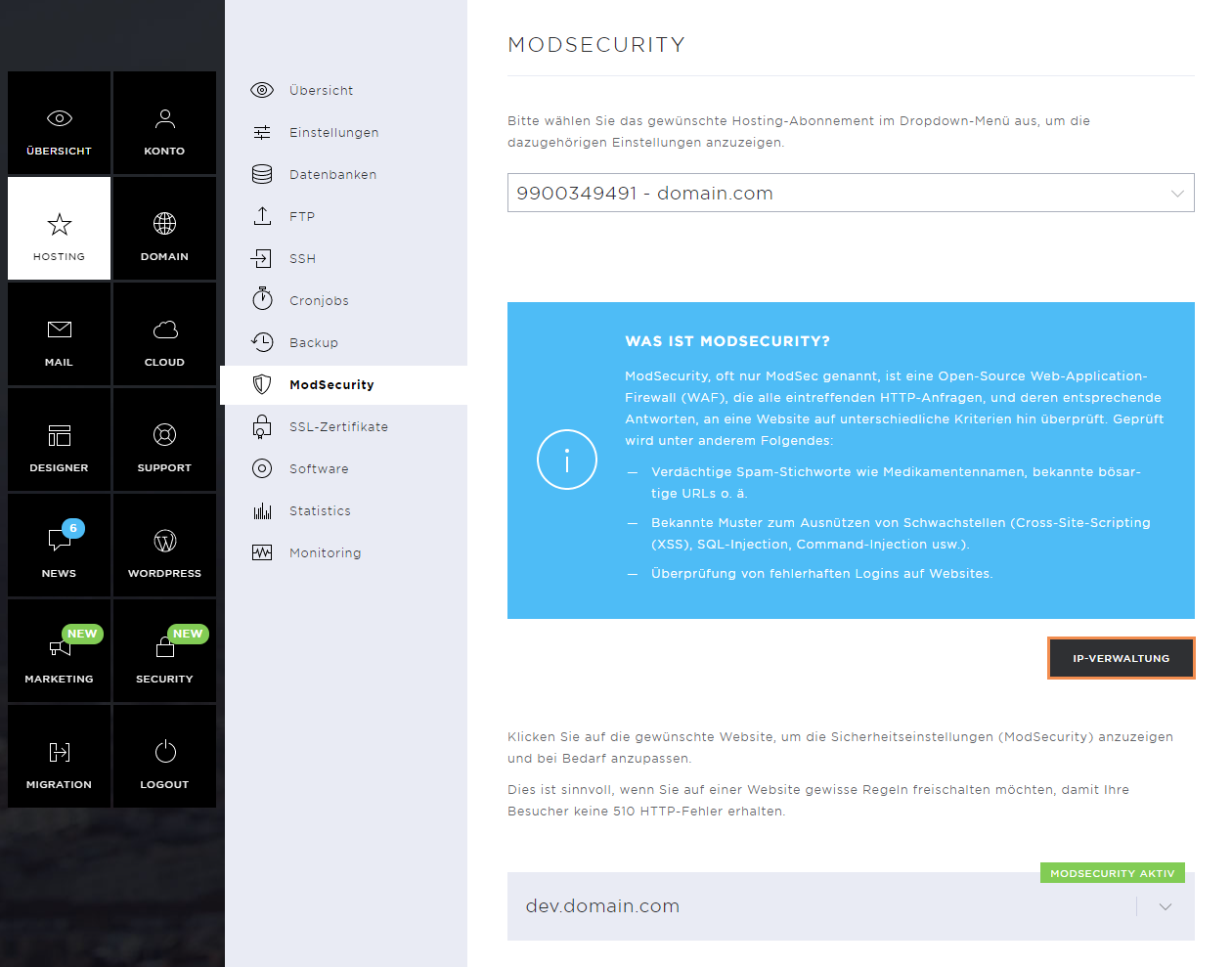
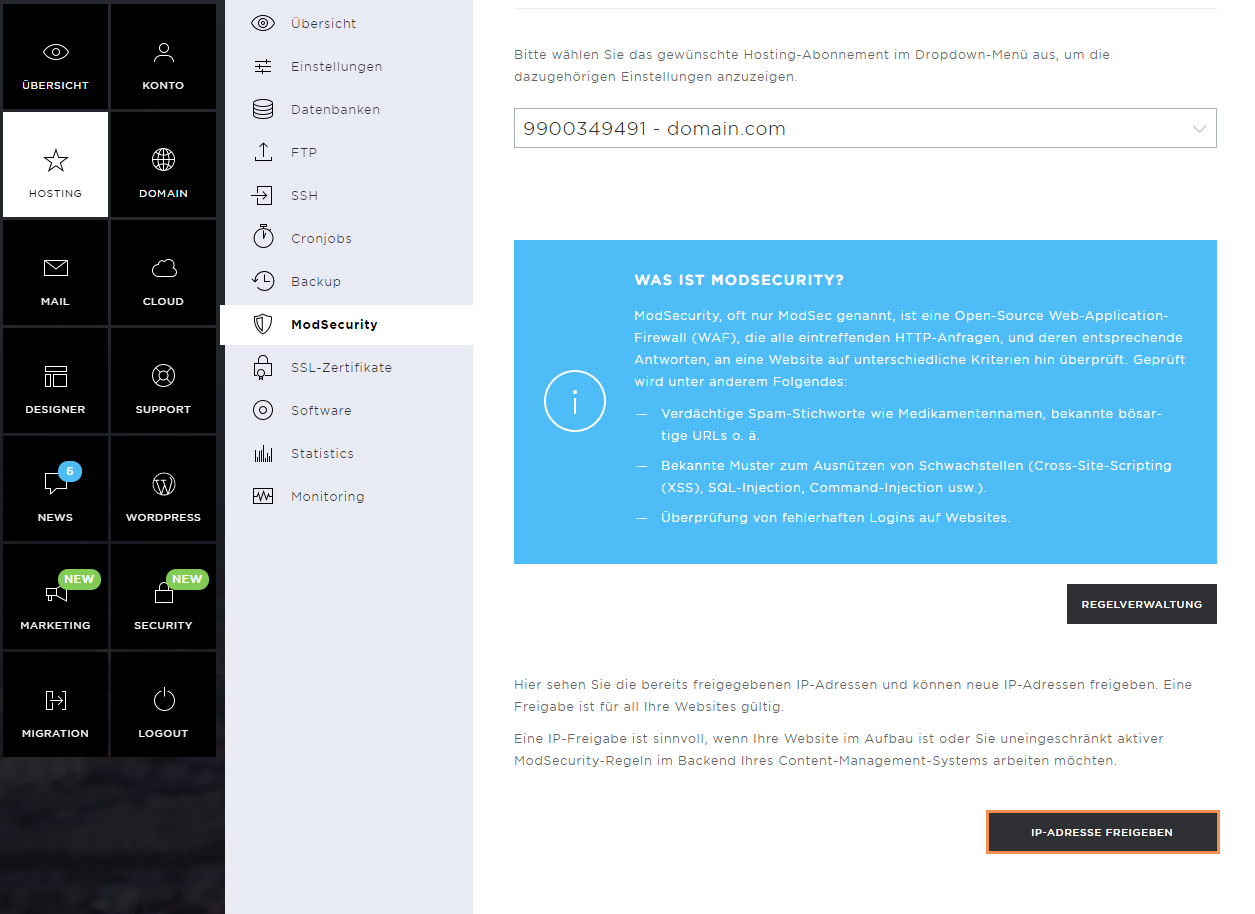
In the new window, click on Authorize IP address.
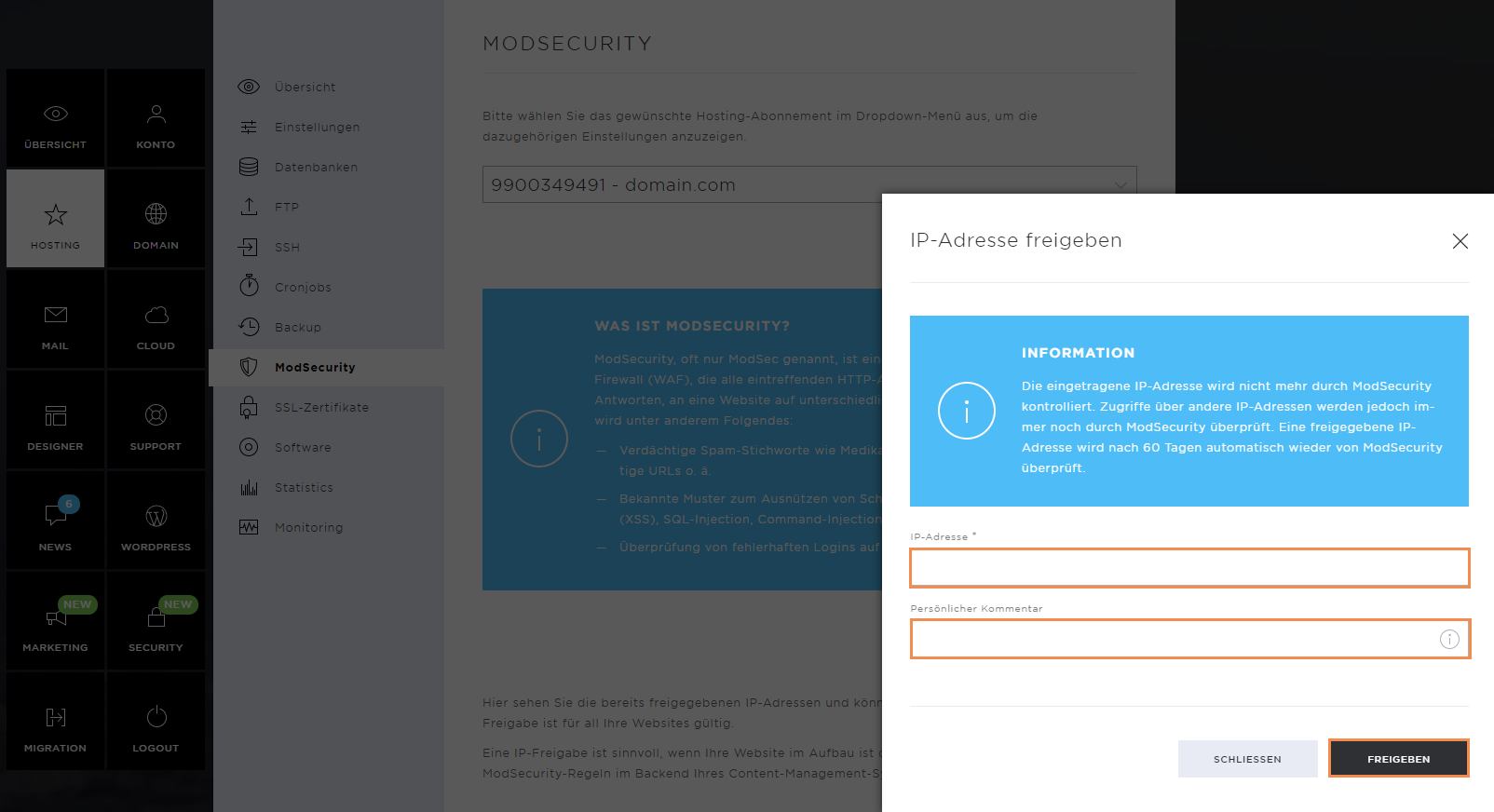
Now enter your IP address and optionally add a comment and click on Allow.
The entered IP address is no longer checked by ModSecurity. However, accesses via other IP addresses are still checked. A released IP address is automatically checked again by ModSecurity after 60 days.
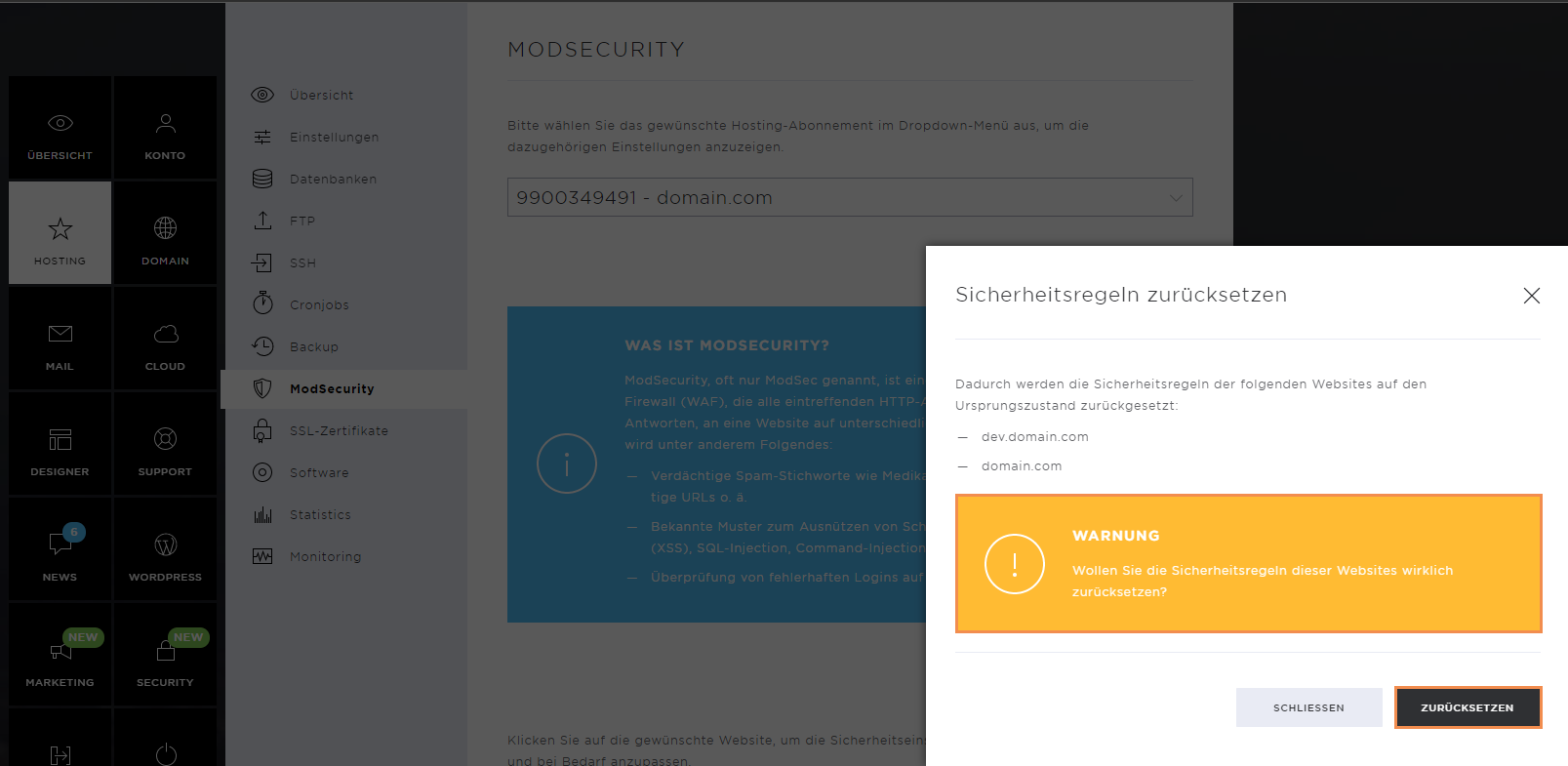
Reset ModSecurity
If you want to reset all triggered security rules and manually deactivated rules, you can click on the Reset button all the way at the bottom of the page.
Read the warning message carefully and confirm the step if you agree with the reset.